What is Code Signing for iOS Applications?
Apple mandates that all executable code must be signed with an Apple-issued certificate to ensure both integrity and authenticity. iOS devices will only run an app under one condition: the app must be signed by a trusted developer. Apple's code signing infrastructure exists to guarantee that users can install and use apps knowing they come from a verified source and have not been tampered with.
iOS code signing serves two main purposes:
- Authenticity: Ensures that the application originates from a known and trusted developer.
- Integrity: Ensures that the code has not been altered, modified, or corrupted after being signed.
Within the iOS ecosystem, code signing is also closely connected to other components such as provisioning profiles, device registration , and entitlements (permissions). These components collectively determine whether an app is allowed to run on specific devices under specific conditions. Each of these elements will be covered in detail later in this guide.
| Term | Definition |
|---|
| Certificate Signing Request (CSR) | A CSR is a file generated on your machine that contains your public key and identity information and is used to request an Apple certificate. |
| Apple Certificate | An Apple certificate identifies you as a trusted developer and is used to sign your iOS app so it can run on devices and be distributed. |
| Bundle ID | A Bundle ID is the unique identifier of an app in the Apple ecosystem, usually written in reverse-DNS format such as com.company.app. |
| Capabilities | Capabilities are features you enable in Xcode that allow your app to use specific Apple services such as Push Notifications, iCloud, or Apple Pay. |
| Entitlement | An entitlement is a permission embedded in your app's code signature that grants access to a specific system feature that the app is allowed to use. |
| Devices | Devices are iPhones, iPads, or other Apple hardware registered by UDID in your Apple Developer account so they can run development or Ad Hoc builds. |
| Provisioning Profile | A provisioning profile is an Apple-issued file that links your app's Bundle ID with a certificate, entitlements, and registered devices to authorize the app to run. |
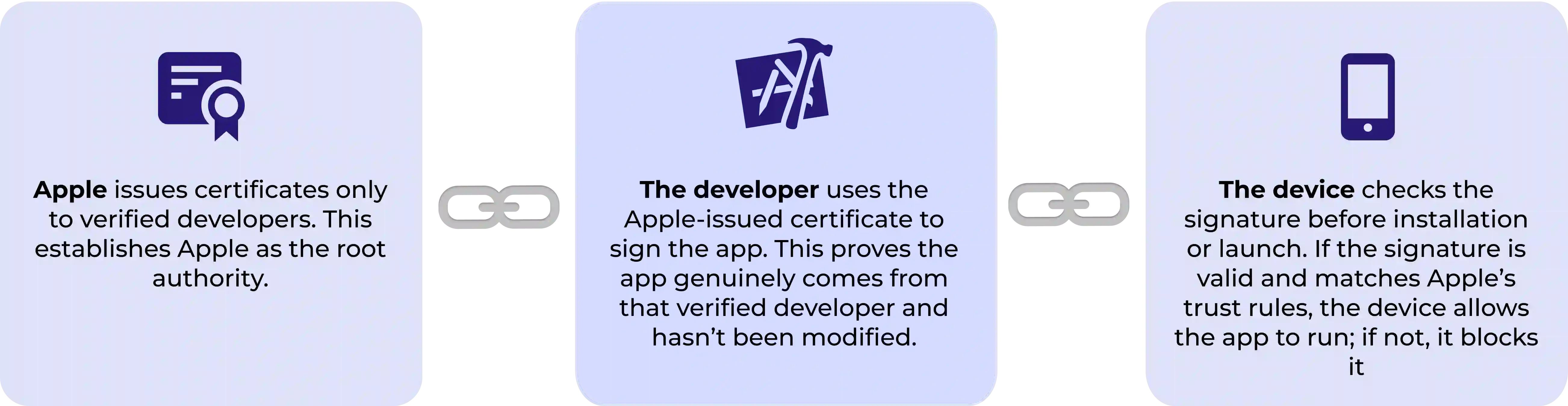
iOS code signing also establishes a strict chain of trust that ensures only verified and untampered apps run on a device.
Apple trusts the developer, and the device trusts Apple. Therefore the device indirectly trusts the developer's signed app. If any link in this chain is broken (for example, an expired certificate, a missing provisioning profile, or a modified binary), the app will not run.
What is an Apple Certificate?
Apple Certificate is a digital credential issued by Apple to a developer (individual or organization) through the Apple Developer Program, verifying their identity and authorizing them to sign iOS applications. There are three main certificate types:
What is a CSR?
A CSR or certificate signing request is a request file you generate that contains your public key and identity info (name, email, etc), which you then submit to Apple to obtain your certificate. A certificate links the developer's identity to a public key and the corresponding private key which is used to sign app binaries.
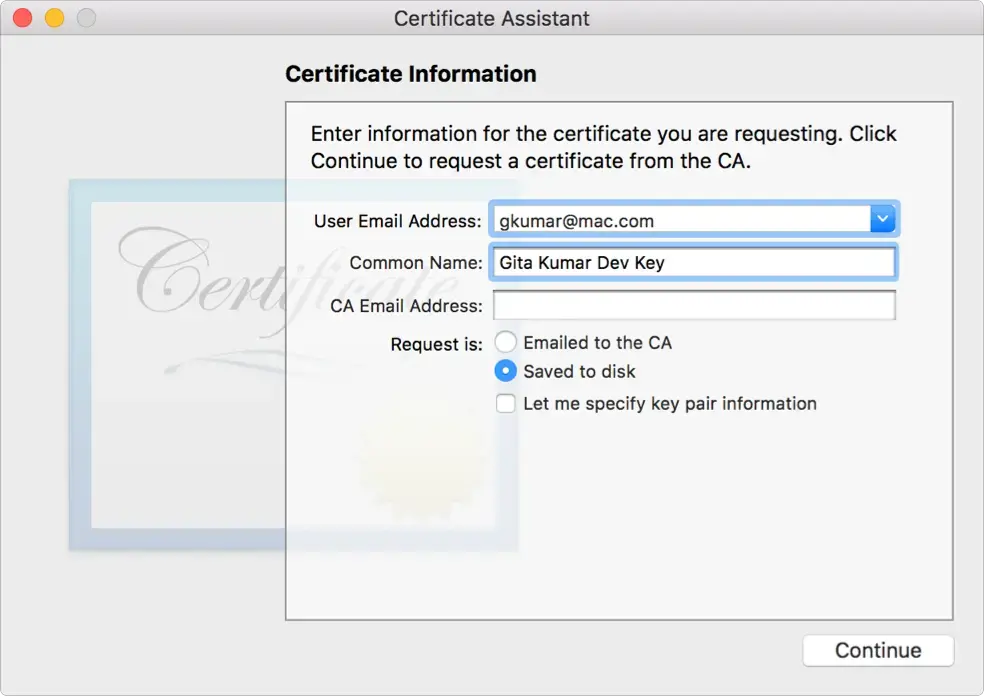
A CSR can be created from Keychain Access > Certificate Assistant > Request a Certificate from a Certificate Authority. You need to enter an email address and give a name for the CSR. The generated CSR then can be used to generate an Apple Certificate.
If you don't have a Mac, you can look at alternative cloud-based solutions like Appcircle to generate a CSR.
What is a .p12 file?
A.p12(also known as PKCS #12 format) file is a secure container file that bundles the certificate and its associated private key (and optionally the chain of trust) into a single encrypted file.
In iOS environment, you export your certificate & private key from Keychain as a .p12 file so you can import it on another machine or share in a team environment securely.
This .p12 file can optionally be protected with a password for extra level of security.
Apple Certificate Types
Depending on the context, an application should be signed using different types of certificates. Apple defines the main certificate types as Apple Development (for development) and Apple Distribution (for distribution) across iOS, tvOS, macOS, and watchOS apps. There are also legacy types available, such as iOS Development and iOS Distribution, but Apple recommends using Apple Development and Apple Distribution for Xcode 11 or later, since these unified certificates work across all platforms. Development certificates are used during the development process to debug the application on real devices, while distribution certificates are used for testing distribution or for uploading builds to App Store Connect.
| Certificate Type | Purpose |
|---|
| Development Certificate | For development and debugging on real device. |
| Distribution Certificate | For TestFlight, App Store, or internal distribution. |
| Enterprise Certificate | For distribution enterprise applications outside App Store. |
Other than the main certificate types, there are several additional certificate types such as Mac Installer Distribution, Developer ID Installer, and Apple Push Notification service SSL. For more information about these certificates and their specific use cases, refer to Apple's official documentation on certificate types.
Curious how Appcircle improves iOS signing workflows for real teams?
Explore Use CasesWhat is a Bundle Identifier?
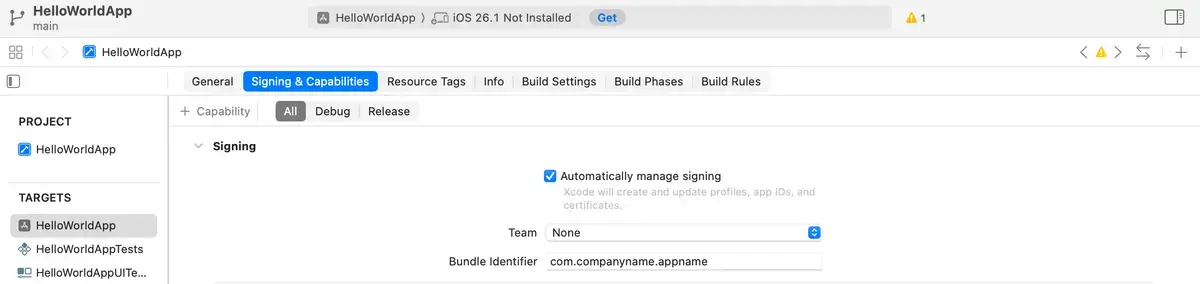
A Bundle Identifier (or Bundle ID) uniquely identifies an application across the entire Apple ecosystem. It is registered with Apple in the Developer Portal and is used for provisioning, App Store submissions, app updates, and device management. Bundle IDs typically follow a reverse-DNS format, such as com.companyname.appname.
What are Capabilities for iOS Applications?
Capabilities are features you enable in Xcode that allow your app to use specific Apple services or system-level functionalities. Examples include Push Notifications, Apple Pay, and App Groups.
When you enable a capability in Xcode, it updates your project settings and entitlements, and your provisioning profile must support those capabilities. Capabilities are tied to your app's Bundle Identifier and are configured both in Xcode and, when required, in the Apple Developer Portal. You can also update the capabilities of a Bundle ID later if your application adds or removes certain features.
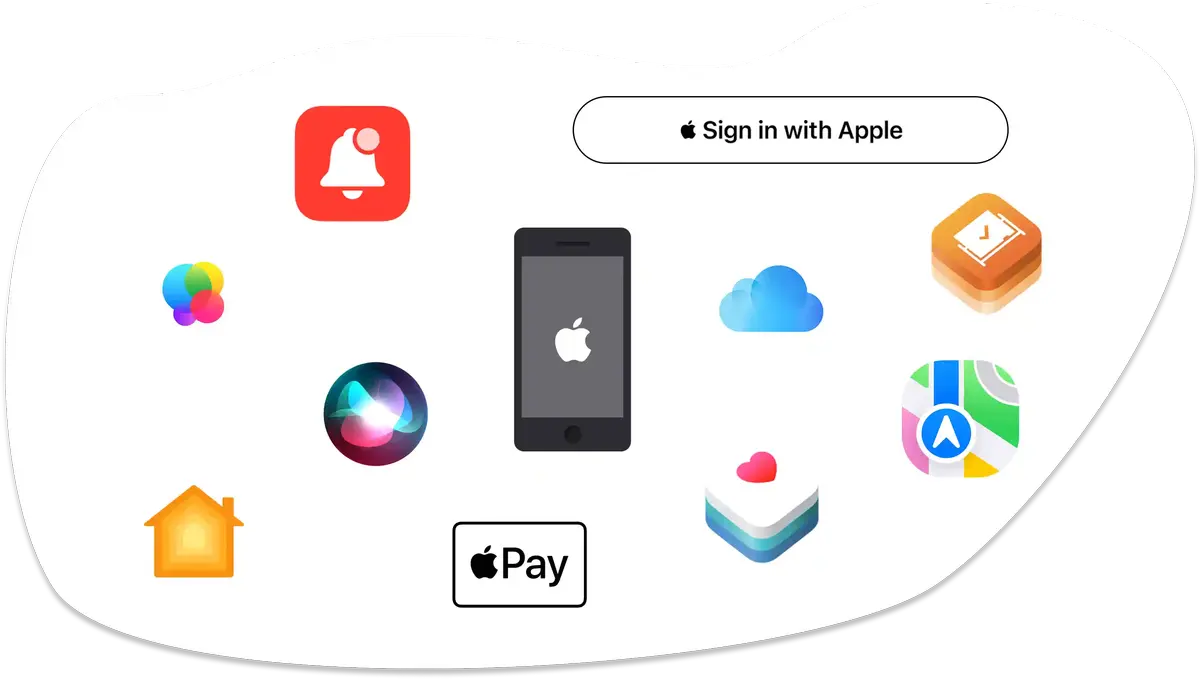
- Push Notifications: Allows your app to receive and display remote notifications sent through the Apple Push Notification service (APNs).
- App Groups: Enables multiple apps and extensions from the same team to securely share data and files.
- iCloud: Lets your app store data in iCloud and sync user information across devices using iCloud services or CloudKit.
- HealthKit: Grants your app permission to read and write health-related data stored in the Health app.
- Sign in with Apple: Enables secure and privacy-focused user authentication using Apple's single sign-on system.
- Apple Pay: Allows your app to process payments through Apple Pay and display the Apple Pay checkout button.
- Siri: Integrates your app's actions with Siri, allowing users to trigger app features through voice commands.
What is an Apple Entitlement?
An entitlement is a special permission added to the app's code signature that grants access to certain system features or services. It is a right or privilege that enables specific capabilities for an executable. Entitlements are stored in an entitlements file, and they are embedded into the app's signature when the app is built.
What is an Apple Provisioning Profile?
An Apple Provisioning Profile is a key part of iOS code signing. It is a file issued by Apple that authorizes an application to run on specific devices with specific capabilities. A provisioning profile contains information about four main components: the Apple Certificate, the Bundle Identifier, the Entitlements, and the list of registered devices.
Provisioning profiles ensure the app's entitlements match the capabilities enabled for the bundle identifier.
Provisioning Profile Types
There are four main types of provisioning profiles that can be used during your iOS development lifecycle.
Development
- Used when building and testing apps on registered development devices.
- Requires a development certificate, an explicit App ID, and a list of device UDIDs.
- Allows debugging and installing apps through Xcode or direct device installation.
- Not used for App Store distribution.
- Subject to device count limits, typically up to 100 devices in the standard Apple Developer Program.
Ad-Hoc
- Allows distribution to a limited set of registered devices, and you must include their UDIDs in the profile.
- Useful for internal beta testing or limited external distribution outside the App Store.
- Requires a distribution certificate.
- Subject to the 100-device limit under the standard Apple Developer Program.
App Store (Distribution)
- Used when submitting your app to the App Store or distributing via App Store Connect and TestFlight.
- Does not require specifying device UDIDs.
- Works with a distribution certificate.
- Ensures the app can be accepted by App Store Connect and installed on any eligible device through the store.
In-House (Enterprise)
- Available only to organizations enrolled in the Apple Developer Enterprise Program.
- Allows internal distribution of apps to unlimited company devices with no per-device UDID registration.
- Not intended for public App Store distribution and used for proprietary or internal business apps.
- Requires adding an authentication layer before users can install the application.
⚠️ Reminder: Please note that apps signed with an Apple Enterprise certificate must use authentication for internal distribution. Apple does not allow public distribution of Enterprise apps, and distributing them without authentication may result in severe sanctions. You can access the relevant terms and conditions from Apple Developer Enterprise Program License Agreement.
How to Manage Apple Devices in Provisioning Profiles?
When creating a development or Ad Hoc provisioning profile, you also need to register devices. An application signed with a development or Ad Hoc provisioning profile will only open on devices that are registered to that profile. To register a device, you need two things:
- the device name
- the device ID, which is a UDID that uniquely identifies an Apple device
For both development and Ad Hoc provisioning, the maximum number of devices that can be registered is limited to 100 devices in the standard Apple Developer Program.
When creating a development or Ad Hoc profile, the devices must be selected from the list of active devices. Managing devices can easily become overwhelming because the list needs to be maintained regularly, and obtaining a device's UDID is not always straightforward. For teams looking for a more structured way to manage their iOS device registrations, Appcircle provides a complete solution that handles device registration in the Apple Developer Portal automatically by simply sending an invitation email to the device owner.
Interested in automating UDID collection for your test devices?
Contact UsiOS Code Signing Types: Manual vs Automatic
There are two ways to handle iOS code signing: manual and automatic.
Manual iOS Code Signing
With manual code signing, the developer is responsible for configuring certificates, provisioning profiles, device lists, and entitlements. For each build configuration, the developer must select the correct certificate and provisioning profile type. The provisioning profile must match the application's Bundle Identifier, and the correct certificates and devices must be included for the app to run properly.
Automatic iOS Code Signing
When automatic code signing is enabled, Xcode manages certificates, provisioning profiles, and device registration for you. Xcode can automatically create or update provisioning profiles and App IDs whenever needed.
CI/CD platforms like Appcircle also allow you to automatically sign your iOS builds automatically sign your iOS builds, helping developers focus on building features instead of dealing with the complexity of code signing.
How to Securely Manage iOS Certificates and Provisioning Profiles?
Since iOS certificates and provisioning profiles ensure app integrity and verify that the application comes from a developer trusted by Apple, keeping these assets secure is critical. Any breach can result in unauthorized parties signing their own applications using your identity. Here are some tips for keeping your iOS signing assets secure:
- Keep
.p12 files in encrypted storage or a secrets manager - Avoid sharing certificates or passwords over email or chat
- Restrict access to signing assets through fine-grained access control
- Do not share Apple Developer account passwords
- Use CI/CD tools that support secure upload and encrypted storage of certificates and provisioning profiles
- Rotate and renew certificates regularly
- Monitor signing assets through audit logs when available
Unfortunately, the Apple Developer Portal does not offer advanced security features such as fine-grained access control or audit logging, which can increase the risk of a security breach. CI/CD platforms like Appcircle allow you to manage your iOS signing assets in a centralized and secure environment with additional protection layers. To learn how Appcircle helps secure iOS code signing, check out this post.
Best Practices for iOS Code Signing
iOS code signing can quickly become a source of overhead for development teams. To streamline your workflow and avoid common issues during your iOS build and distribution process, here are the best practices to follow for a smoother and more secure signing experience.
1. Use a Centralized Management Tool for Signing Assets
Managing certificates and provisioning profiles manually can be time-consuming and open to many errors. Using a centralized tool such as Appcircle, Fastlane Match, or a CI/CD platform with secure signing storage ensures consistency, prevents duplication, and keeps sensitive credentials out of team members' hands. Centralized signing also improves reliability for automated iOS builds.
2. Track Certificate and Provisioning Profile Expirations
Apple certificates and provisioning profiles expire, and missing a renewal can break an entire iOS build pipeline. Always keep track of expiration dates, set reminders, and renew signing assets proactively to avoid build failures or app installation issues. Modern CI/CD tools can automate expiration tracking and notifications to help teams not miss an expiration date.
3. Automate iOS Certificate and Profile Generation When Possible
Automation significantly reduces human error. Tools like Appcircle can automatically create, renew, and manage provisioning profiles and certificates. Automated signing ensures that all signing assets remain consistent across environments and greatly simplifies building and distributing iOS apps in the cloud.
4. Maintain Registered Devices Regularly
Development and Ad-Hoc provisioning profiles require device UDIDs. Remove unused devices, update UDIDs for new devices, and regenerate provisioning profiles whenever changes occur. Keeping the device list clean helps prevent hitting Apple's 100-device limit and avoids failed test installations.
5. Keep Entitlements and Capabilities Aligned
Your app's entitlements must match the entitlements included in the provisioning profile. Only enable capabilities that your iOS app actually needs, and verify that your provisioning profiles include the correct permissions before building. Misaligned entitlements can cause signing errors or runtime failures.
6. Follow Secure Re-signing Practices
When re-signing an existing IPA or app bundle, always use the correct certificate, provisioning profile, and entitlements. Make sure the entitlements in the re-signed binary match those allowed by the provisioning profile. Avoid adding or modifying entitlements, as this can lead to installation failures or App Store rejections.