


If your mobile app uses SSL pinning, a routine certificate renewal can lock your users out, and renewals are about to become much more frequent. Since March 2026, public SSL certificates can be valid for at most 200 days. The limit drops to 100 days in March 2027 and to 47 days in March 2029.
For websites, more frequent renewals are an automation task. For mobile apps that use SSL pinning, they can be a release problem: the pin is built into the app, so if the server presents a certificate the app doesn’t expect, the connection fails until users install an update. This guide explains how SSL certificates and pinning work, what the 47-day rule changes, and how to set up your pinning strategy and CI/CD pipeline so renewals fit into your regular release process instead of disrupting it.
What Is an SSL Certificate?
An SSL certificate, more accurately called a TLS certificate today, is a digital document that proves a server is who it claims to be. It binds a domain name (for example, api.example.com) to a public key, and a trusted Certificate Authority (CA) signs that binding.
When your app opens an HTTPS connection, the server presents its certificate as part of the TLS handshake. The app checks that a trusted CA signed it, that it covers the requested domain, and that it has not expired. If any of these checks fails, the secure connection is not set up.
What's Inside an SSL Certificate?
An SSL/TLS certificate follows the X.509 standard (RFC 5280). The fields that matter most for mobile developers are:
| Part | What it is | Why it matters for pinning |
|---|---|---|
| Domain names | The domains the certificate is valid for, such as api.example.com | The app rejects a certificate issued for a different domain |
| Public key | The server's public key and its algorithm, stored in a structure called SPKI | Public key pinning checks this value |
| Issuer | The Certificate Authority that issued the certificate | CA pinning checks the issuer's key instead of the server's |
| Validity dates | The start and end date of the certificate | An expired certificate fails normal TLS validation, even if the pin still matches |
| Signature | The CA's digital signature | Proves nobody changed the certificate |
One thing is not in the certificate: the private key. It stays on the server and is used to prove that the server really owns the certificate. The certificate itself is public, so anyone can see it. The private key is what you need to protect.
How SSL/TLS Works: The Chain of Trust
SSL certificates rely on a chain of trust. Your phone comes with a built-in list of trusted Certificate Authorities (CAs), called root CAs. A root CA usually doesn’t sign server certificates directly. Instead, it signs an intermediate CA, and the intermediate CA signs your server’s certificate, called the leaf certificate. When your app connects, it checks each link in this chain until it reaches a root CA it already trusts.
A certificate's life has two phases. Issuance happens once per renewal. Verification happens whenever your app sets up a new secure connection.
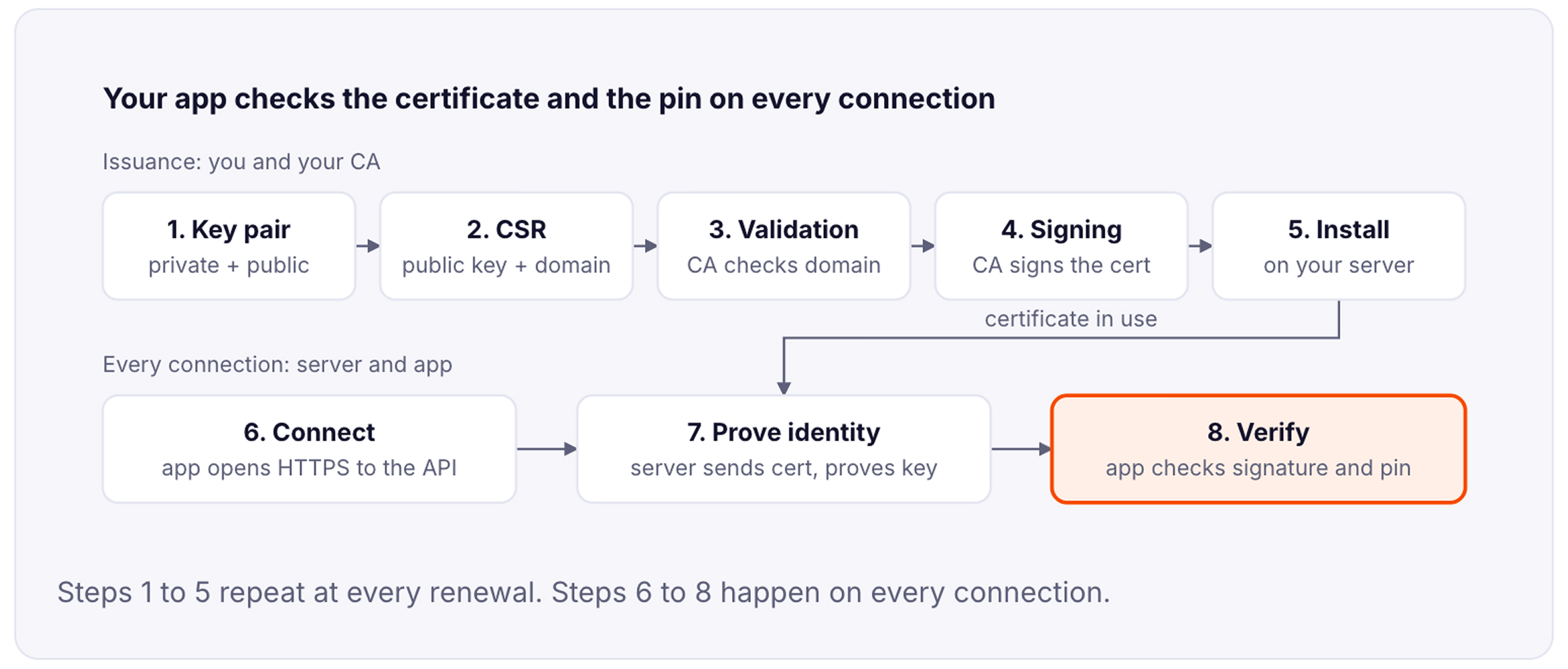
- Key pair: Your server team generates a private key and a matching public key.
- CSR: The server team creates a certificate signing request that contains the public key and the domain names, signed with the private key.
- Validation: The CA confirms you control the domain, for example through a DNS record.
- Signing: The CA signs a certificate that binds your public key to the domain, with validity dates.
- Install: The certificate and the private key go on your server.
- Connect: The app opens an HTTPS connection to your API.
- Prove identity: The server sends its certificate chain and proves it holds the private key.
- Verify: The app checks the CA signatures, the domain, the dates and, if it pins, the pin.
Steps 2 to 5 repeat at every renewal, and step 1 too if you generate a new key. If the app pins something that changes in those steps, step 8 fails.
SSL Certificate Validity Is Dropping to 47 Days: What’s Changing and When
In April 2025, the CA/Browser Forum, the group of certificate authorities and browser makers that sets the rules for public SSL/TLS certificates, passed Ballot SC-081v3. It cuts the maximum validity of publicly trusted SSL/TLS certificates in steps:
| Certificates issued on or after | Maximum certificate validity | Domain validation reuse |
|---|---|---|
| Before March 15, 2026 | 398 days | 398 days |
| March 15, 2026 | 200 days | 200 days |
| March 15, 2027 | 100 days | 100 days |
| March 15, 2029 | 47 days | 10 days |
The last column is easy to miss. Before issuing a certificate, the CA checks that you still control the domain. Today that check can be reused for months. From 2029 it can be reused for only 10 days, so almost every renewal will need a new check.
Why the change? Shorter lifetimes limit how long a wrongly issued or misused certificate stays valid, and the web depends less on certificate revocation, which the ballot describes as unreliable at internet scale.
What it covers: The rule applies to publicly trusted SSL/TLS server certificates, the ones your browser and phone trust out of the box. Certificates issued by a company’s own internal CA, which phones and browsers don’t trust by default, are not covered. The limits apply to certificates issued on or after each date, so a certificate already issued keeps its original validity.
Who needs a plan: The rule applies whether or not your app uses pinning. Apps that don’t pin usually keep working without an update, as long as the new certificate passes normal TLS validation. Apps that pin are the ones that need a plan.
Why SSL Pinning Matters for Mobile Apps
By default, an app trusts any certificate signed by any CA in the device's trust store. That is a long list. As the Android documentation puts it, if any of these CAs issued a fraudulent certificate, the app would be exposed to an on-path (man-in-the-middle) attacker. This has happened: in 2011, attackers who broke into the Dutch CA DigiNotar issued certificates that looked valid for Google and other sites.
Getting even the default check wrong is costly. In one case covered in our mobile CI/CD failure stories, two consumer apps were released with SSL certificate validation turned off. Anyone on the same public Wi-Fi could intercept their traffic, including card numbers and Social Security numbers, and the issue led to a settlement with the US Federal Trade Commission. Pinning goes one step further than that baseline: it limits which certificates the app accepts at all.
SSL pinning narrows that trust. The app is built with the certificate or public key it expects from your server, and it refuses to connect if the server presents anything else. In the words of the OWASP Pinning Cheat Sheet, pinning links a host to the certificate or public key it is expected to use.
What SSL pinning adds to standard HTTPS
HTTPS encrypts traffic and checks the server’s certificate against the CAs the app trusts, which protects most apps well. Pinning adds protection for one specific case: when an attacker can present a certificate that looks valid to the app. That can happen when a trusted CA issues a certificate by mistake, or when the app trusts a CA certificate that was added to the device. Apps that target Android 7 or later ignore user-added CAs by default unless they are configured to trust them, while on iOS a user can turn on full trust for an installed CA profile. Once the app trusts the attacker’s certificate, the attacker can route its traffic through a proxy and read or modify it. With pinning, the app sees that the key doesn’t match the one it expects and refuses to connect.
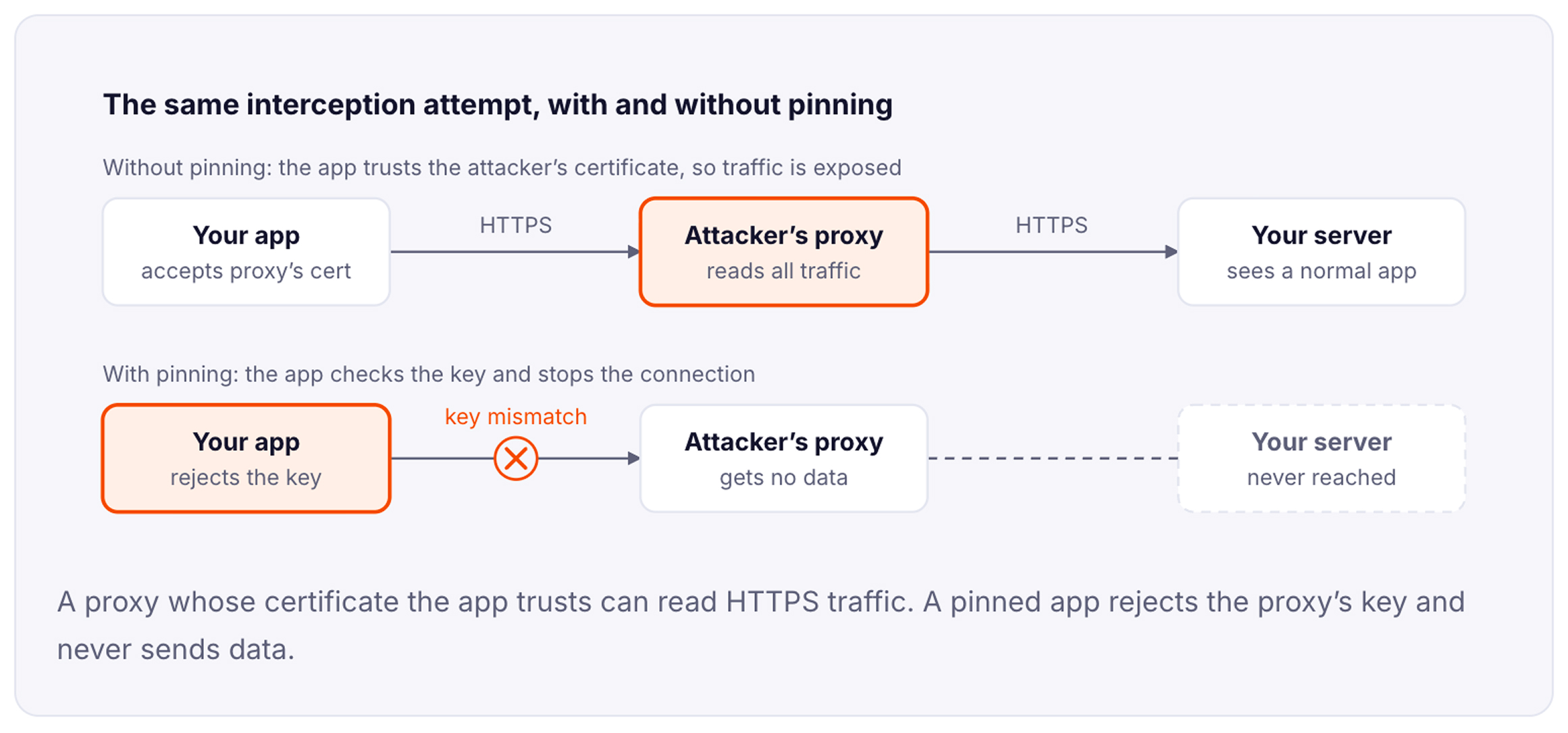
A simple way to picture it: Think of your server’s public key as a lock. The certificate is a document from a CA saying “this lock belongs to api.example.com until this date.” HTTPS checks that the document comes from an authority the app trusts. Pinning goes one step further: the app memorizes the exact shape of your lock and rejects any other, whatever document comes with it. A backup pin is a second lock the app already knows, ready for the day you change locks. For a different angle on the same basics, the carrier pigeons analogy walks through how HTTPS, certificates, and CAs work.
An extra layer, not the whole defense
Pinning makes interception much harder, but it doesn’t make an app secure on its own. On a device the attacker controls, especially a rooted or jailbroken one, tools like Frida can patch the app while it runs and make the pin check always pass. That is why security teams pair pinning with other layers: app integrity checks such as Google’s Play Integrity API and Apple’s App Attest, code obfuscation, and server-side checks. Each layer adds work for an attacker, and together they raise the cost of an attack.
What standards and platforms say
Standards and platform vendors don't all say the same thing about pinning:
- OWASP MASVS: The verification standard’s network control MASVS-NETWORK-2 states that the app performs identity pinning for all remote endpoints under the developer's control, and MASWE-0028 lists insecure identity pinning as a mobile weakness.
- OWASP Pinning Cheat Sheet: The cheat sheet, OWASP’s practical guidance for developers, is more cautious. It warns that the risk of outages often outweighs the security benefit, and advises against pinning unless you control both the app and the server and can update the pin set safely.
- Apple: The Identity Pinning guide supports pinning natively in iOS and asks teams to plan it carefully, for example by pinning more than one key.
- Android: The security guidance does not recommend pinning for most apps.
Apple and Google weigh pinning’s extra protection against the risk of a broken connection: a pin that no longer matches the server stops the app from connecting, and both stores expect apps to stay available. For financial institutions and apps that handle identity or health data, pinning remains a valuable security layer. Whether your app must pin depends on the security assessment scope and internal policy your organization follows. For teams whose policy requires it, the question is how to pin without breaking releases.


Types of SSL Pinning
How you pin decides what happens on renewal day. You make two choices: what to pin (the full certificate or only its public key) and which certificate in the chain to pin (your server's own certificate, or the CA that issued it).
The OWASP Pinning Cheat Sheet breaks the decision down the same way. Either choice can also be pinned as a hash: a certificate hash changes with every renewal, while a public key hash changes only when the key does.
| Pinning type | What the app checks | What happens when the certificate is renewed |
|---|---|---|
| Certificate pinning | Your server's exact certificate | Breaks at every renewal. The app needs an update with the new certificate before the server switches to it. |
| Public key pinning | Your server's public key, or a hash of it | Keeps working if the new certificate uses a key that is already in the pin set, such as a backup key prepared in advance. |
| CA pinning | The public key of an issuing (intermediate) or root CA | Keeps working as long as the pinned CA key appears in your server's certificate chain. If the CA switches to a different intermediate key, the pin can break even though the company is the same. |
The higher you pin in the chain, the fewer renewals break the pin, but the more certificates the app accepts. Pinning at the server level is the strictest, and certificate pinning is the strictest of all, since every renewal changes the pin. Pinning an intermediate CA sits in the middle, and pinning a root CA accepts any certificate issued under that root. At every level the device still checks the domain name, so pinning a CA doesn’t mean accepting a certificate it issued for someone else’s domain.
Public key pinning is what Android and iOS support out of the box. On Android, you add the public key hash to the Network Security Configuration file. On iOS 14 and later, you add it to Info.plist under NSPinnedDomains. A public key hash can be calculated before a certificate is even issued for the key, which gives you room to prepare the next key in advance. Apple suggests pinning the CA's key rather than your server's key where you can.
Renewing with the same key: To get a new certificate with the same public key, the server team creates the certificate signing request (CSR) from the existing private key instead of generating a new one. The CA signs a certificate with new dates, but the public key, and therefore the pin, stays the same. This is operationally easy and keeps public key pins valid across renewals. From a security point of view, though, OWASP considers reusing a key a bad key management practice outside of emergencies: the longer a key stays in use, the more damage a leak can do. Rotate keys on a schedule your security team sets, and add the next key to the app as a backup pin before you switch.
Whichever type you choose, Apple and Google both recommend a backup pin. The app holds a pin set, and a connection succeeds if the server matches any entry in it. The section below shows how this works during a rotation.
What Shorter SSL Certificate Lifetimes Mean for Mobile Releases
For websites, shorter lifetimes are mostly an automation task. A server can renew and install its certificate automatically, and browsers pick up the new one on the next visit.
A mobile app is different. A pin lives inside a signed binary on users' devices, and nothing on the server can change it. With a single pin, every rotation needs a new app version in users' hands before the server switches, and shorter lifetimes make that happen more often. A pin set with a backup key avoids this. Here is how a planned rotation works:
- Today: Your server uses Key A. The app includes pins for Key A and Key B. Key B was generated in advance and kept safe, but is not in use yet.
- Renewal day: You request the new certificate for Key B and switch the server to it. Every app version that includes Key B keeps connecting.
- Next regular release: The app drops the pin for Key A and adds Key C as the new backup.
A backup pin only protects users who run a version that contains it. Before each switch, check that the app versions you still support include the new key, and keep a way to roll the server back if something goes wrong. Add the next key to the app as early as you can, so most users already have it on rotation day. Users still on older versions may need a forced update, so plan that transition in advance.
Planned rotation vs. a compromised key: The steps above describe a planned rotation. If a key is compromised, switching the server to the backup key is only the first step: the compromised key stays in the pin set of every app version in the field until users install an update that removes it.
Without a backup, the release cycle works against you. Store review takes time, phased rollouts take longer, and some users never update, so anyone on an old version loses access to your API when the server switches.
How to Prepare Your App for 47-Day SSL Certificates
The goal is simple: a routine certificate renewal should never require an emergency release.
- Know what you pin today. List every domain your app pins, how it pins it, and when each pinned certificate expires. Check iOS and Android separately, since they are often set up differently.
- Prefer public key pinning. Pin the public key hash rather than the certificate file, so you can prepare keys before their certificates are issued.
- Plan key rotation with a backup pin. Agree with your security team how long a key may live (NIST SP 800-57 gives guidance) and add the next key as a backup, as in the example above. Avoid reusing the same key indefinitely.
- Choose the pinning level deliberately. Apple suggests pinning CA keys where possible. OWASP prefers pinning your own key with a backup, because pinning a CA means trusting every certificate it issues.
- Check how certificates are renewed. As renewals move to automation, check what your server team’s tools do with keys. Some tools create a new key on every renewal by default, which silently changes the pin.
- Put renewals and releases on one calendar. Your backend and mobile teams should share certificate expiry dates, key changes, and the releases that depend on them.
- Check certificates in your pipeline. Let your pipeline warn you when a pinned certificate is close to expiry and fail the build if it has already expired, so an expired pin never reaches your users.
- Test pinning before release. In a production-like configuration, for example in a UI test, check that the app connects with the expected key and refuses a certificate that is valid but not in its pin set. Debug settings, such as Android’s debug overrides, can bypass pinning, so don’t rely on debug builds for this test.
Moving these checks from manual work into your mobile CI/CD pipeline turns them into a repeatable process you can audit and control.
Managing SSL Certificates for Pinning With Appcircle
In Appcircle, SSL certificates sit in Signing Identities, next to your Apple certificates and Android keystores. That gives you one place to manage every pinned certificate, track expiry dates before they turn into outages, and turn shorter certificate lifetimes into a standard, governed process. Your app references the pins once; from then on, updating a pin is an upload and a build. Your repository stays unchanged: Appcircle applies the values only on the build machine, during the build. It works the same way on Appcircle Cloud and self-hosted installations.
Store SSL certificates where your signing assets live
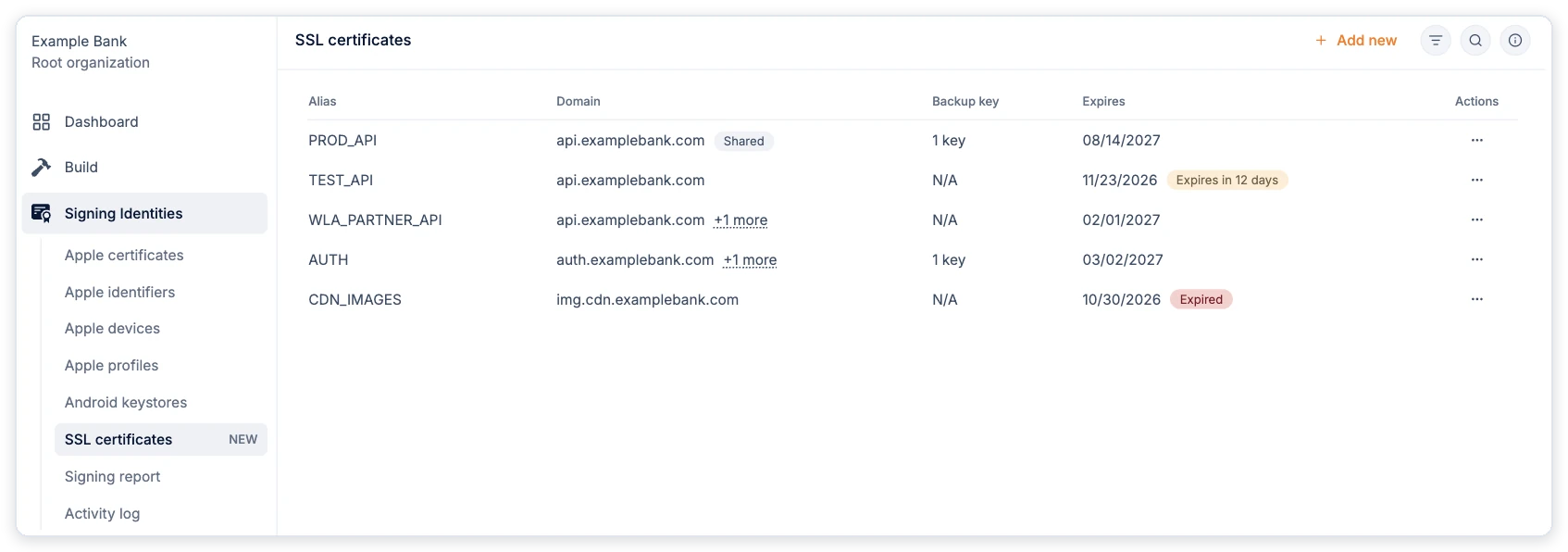
Upload a certificate under Signing Identities > SSL Certificates and give it an alias, such as PROD_API. Supported file formats are .pem, .der, .crt, and .cer, including full chain files. Appcircle reads the domains, issuer, and expiry date from the certificate and calculates its pins. Files that contain a private key are rejected and never stored: pinning only needs the public certificate. Instead of uploading manually, organizations with a central certificate management system can also upload certificates automatically through the API.
Certificates can be shared with sub-organizations. Access is controlled with role-based permissions, as in the rest of Signing Identities, and changes are recorded in the activity log.
Replace hard-coded pins with a reference
Instead of hard-coding pins, your app references the values Appcircle provides during the build, such as the public key hash of each certificate, or the certificate itself for teams that pin the full certificate. This takes a one-time change in your project; after that, your code stays the same when pins change.
To separate environments, select a different certificate under the same alias in each build configuration, for example a test certificate in Dev and the production certificate in Prod. Your code uses the same reference in both.
Add backup keys before you need them
Backup keys are the public keys your server will move to. Paste a SHA-256 public key hash, or upload the key’s .pem file or the certificate signing request (CSR) your server team created for it, even before a certificate exists. A CSR already contains the public key, so Appcircle can calculate the pin from it. The step passes backup pins to the build alongside the active one, so apps built with them keep connecting when the server switches.
See expiry before it becomes an outage
Each certificate shows its expiry date, with badges such as “Expires in 12 days” and “Expired.” The SSL Pinning step checks expiry during the build too: by default, it stops the build if a selected certificate has expired, warns when one expires within 30 days, and warns when a certificate has no backup key.
Select certificates and add the SSL Pinning step
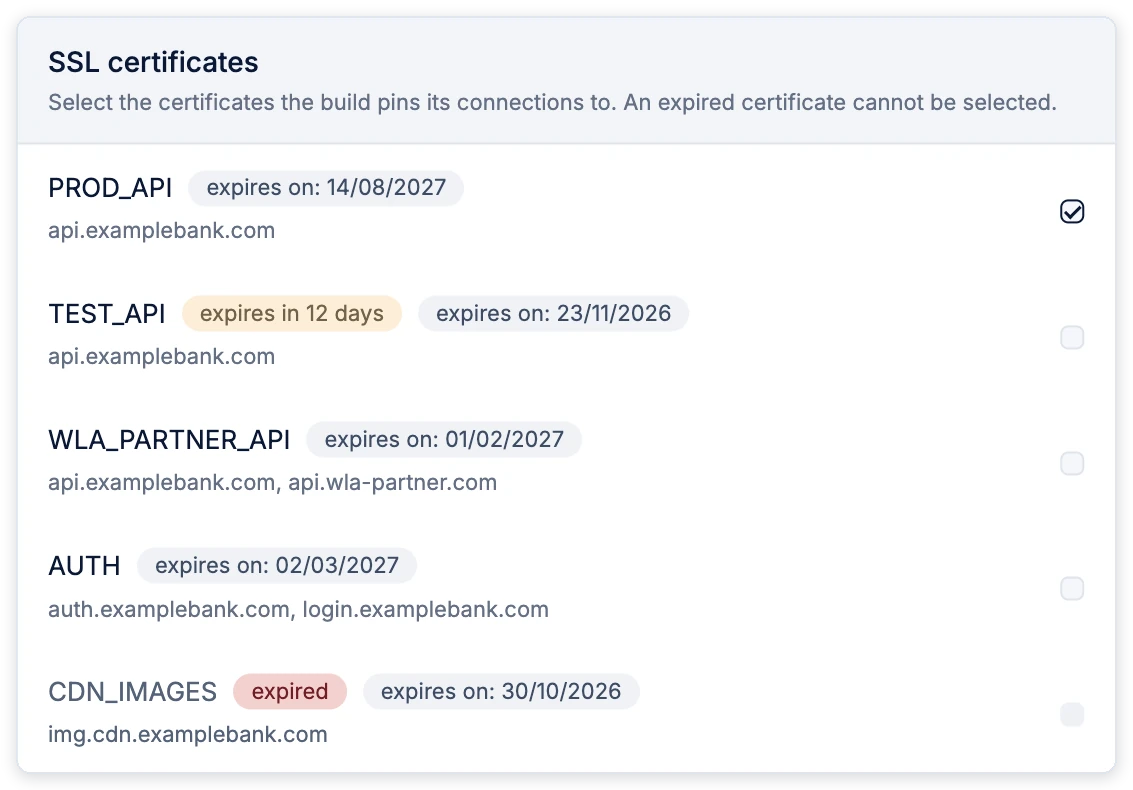
Select the certificates in the build configuration’s Signing tab; an expired certificate can’t be selected. When you replace a certificate with a renewed one, build configurations that use it switch to the new certificate automatically, so there is nothing to reconfigure. Then add the SSL Pinning step to your workflow, after Git Clone and before your build step.
A separate step validates your SSL certificates. It checks that a certificate is valid and that the pinned connection actually works, so problems show up in your pipeline instead of after release.
See which certificate each version contains
Every binary records the certificates it was pinned with. In Testing Distribution, Publish to Stores, and the Enterprise App Store, the Binary Information of each version shows which certificates it contains, and Publish to Stores also highlights this for the versions you send to the stores. Before a certificate renewal, this makes it easy to track which certificate each released version carries.
Renewals and key rotations
When a certificate is renewed, Appcircle can pull the new one automatically if you use a certificate provider, or you can upload it manually. Build configurations already use the new certificate, so you just trigger a build, distribute it for testing, and submit it to the stores, with no manual hash calculation or code change.
Benefits of managing SSL pinning in Appcircle
- One place for every certificate: Pinned certificates, backup keys, and expiry dates are managed centrally, instead of being scattered across each project’s code.
- Easier with multiple certificates: Apps that talk to several servers can select all the certificates they need in one build configuration, each with its own pins, backup keys, and expiry date.
- Fewer errors: Appcircle calculates the pins and passes them to the build, so there is no manual hash calculation or copy-paste mistake to slip into a release.
- Early warnings: Expiry badges, build-time checks, and the SSL validation step catch problems before they reach your users.
- Traceable releases: Binary Information shows which certificate each version carries, so you always know what is in the field.
- Audit-ready changes: Role-based permissions control who can change certificates, and the activity log records every change.
- Safer by default: Private keys are rejected and never stored, and your repository stays unchanged, since values are applied only during the build.
- Less manual work: A renewed certificate updates your build configurations automatically, with no code change or pull request.
Together, these turn shorter certificate lifetimes from a recurring risk into a routine, controlled part of your release process.
Conclusion
Shorter certificate lifetimes are already here: 200 days today, 100 days in March 2027, and 47 days in March 2029. For mobile apps, the real question is not how often the certificate changes but whether your pin changes with it.
Start with an audit of what you pin. Choose the pinning method that fits your security policy, whether that is the certificate or its public key, add a backup pin for your next key, and plan renewals and key rotation together. Where the certificate must stay inside the app, make updates part of your build process, with expiry alerts and build-time injection, so they never turn into an emergency release.
For more details, read the Signing Identities documentation, or contact our team to walk through it together.
Frequently Asked Questions
What is SSL pinning?
SSL pinning, often used interchangeably with certificate pinning, is a security technique where a mobile app accepts only specific certificates or public keys for its server, instead of any certificate signed by a CA the device trusts. It protects against interception through a fraudulent or untrusted certificate.
When does the 47-day SSL certificate rule start?
The 47-day maximum applies to publicly trusted SSL/TLS certificates issued on or after March 15, 2029. Before that, the limit is 200 days (from March 15, 2026) and 100 days (from March 15, 2027), under CA/Browser Forum Ballot SC-081v3.
Does SSL pinning break when the certificate is renewed?
It depends on what you pin. Certificate pinning breaks at every renewal, so the app needs an update before the server switches. Public key pinning keeps working if the renewed certificate uses the same key or a key the app already has as a backup pin. CA pinning keeps working as long as the pinned CA key stays in the certificate chain.
Is public key pinning better than certificate pinning?
For most mobile apps, it is the more practical choice. It still limits which servers the app trusts, and it gives you more room to plan: a key's hash can be prepared before its certificate is issued. The trust scope is slightly different, since the app accepts any valid certificate that carries the pinned key, not one specific certificate. Both Android's Network Security Configuration and iOS NSPinnedDomains pin public key hashes.
Do I need a backup pin?
Yes. Apple and Google both recommend pinning more than one key. Without a backup, a lost, compromised, or rotated key leaves your app unable to connect until users install an update.
Does the 47-day rule apply to public keys?
No. The rule limits how long a certificate is valid, not how long a key pair can be used, so a renewed certificate can keep the same public key and pin.
Can pins be updated without an app release?
Technically, yes: an app can download a new pin set at runtime and pass it to its HTTP client. The hard part is delivering it securely. The update channel becomes a target, since anyone who controls it can push their own key, and the app needs a safe fallback if that channel is unavailable. Because of these risks, most teams build pins into the app and rely on backup pins to avoid emergency releases.
Does the certificate type (DV, OV, EV) affect pinning?
Usually not. DV (domain validated), OV (organization validated), and EV (extended validation) describe what the CA checked before issuing the certificate, and pinning your server’s own key works the same way for all three. If you pin a CA’s key, check which intermediate your certificate chains to: some CAs issue each validation level from a different intermediate, so changing the level can change the pin.