




When it comes to project management in software development, Jira is a household name. Known for its robust capabilities, it is the go-to tool for tracking issues, managing bugs, and streamlining tasks throughout the development lifecycle. But mobile teams have a specific problem Jira alone does not solve: the board says a ticket is ready to test, and nobody knows which build that actually refers to.
In this blog, we’ll explore how to use Jira effectively in mobile app development, and how connecting it to Appcircle closes the gap between your mobile CI/CD pipeline and your board.
Using Jira Effectively for Mobile DevOps
Managing mobile app projects in Jira can be incredibly efficient—if done right. Here are some tips to help you get the most out of it:
1. Create Separate Projects for Each App
If you’re developing multiple mobile apps, keep things organized by creating separate Jira projects for each one. This ensures that each app’s issues and progress are tracked independently, so a delayed release in one app does not bury the backlog of another.
2. Use Labels Wisely
Labels are your best friend when it comes to categorizing and prioritizing tasks. Use consistent, meaningful labels to categorize issues based on factors like priority, severity, or feature type. For example, labels like
UI, backend, or critical can help streamline task tracking.3. Define a Clear Workflow
A clear workflow ensures that issues progress smoothly through the development lifecycle. Define issue types (e.g., bug, task, story), states (e.g., backlog, in progress, completed), and transitions so that your team always knows what’s next. Give your transitions names you can reuse later, because these are exactly what an automated pipeline will call when a build succeeds or fails.
4. Leverage Agile Boards
Agile boards in Jira are fantastic for visualizing project progress and identifying bottlenecks. Use them to track tasks, assign responsibilities, and monitor progress in real-time.
5. Automate Repetitive Tasks
Jira’s automation features save time on assignments and status changes. The bigger win, though, is letting your CI/CD platform report back to Jira directly, so a status reflects what actually happened in a build rather than what someone remembered to click.
Appcircle + Jira: Automate Issue Updates from Your Pipeline
Appcircle’s Jira integration closes that gap. The Jira Comment step lets your workflow post comments on an issue and change its status based on how the build went. You connect it once with your Jira credentials, which are stored as secret environment variables, so no token is ever hardcoded in your workflow.
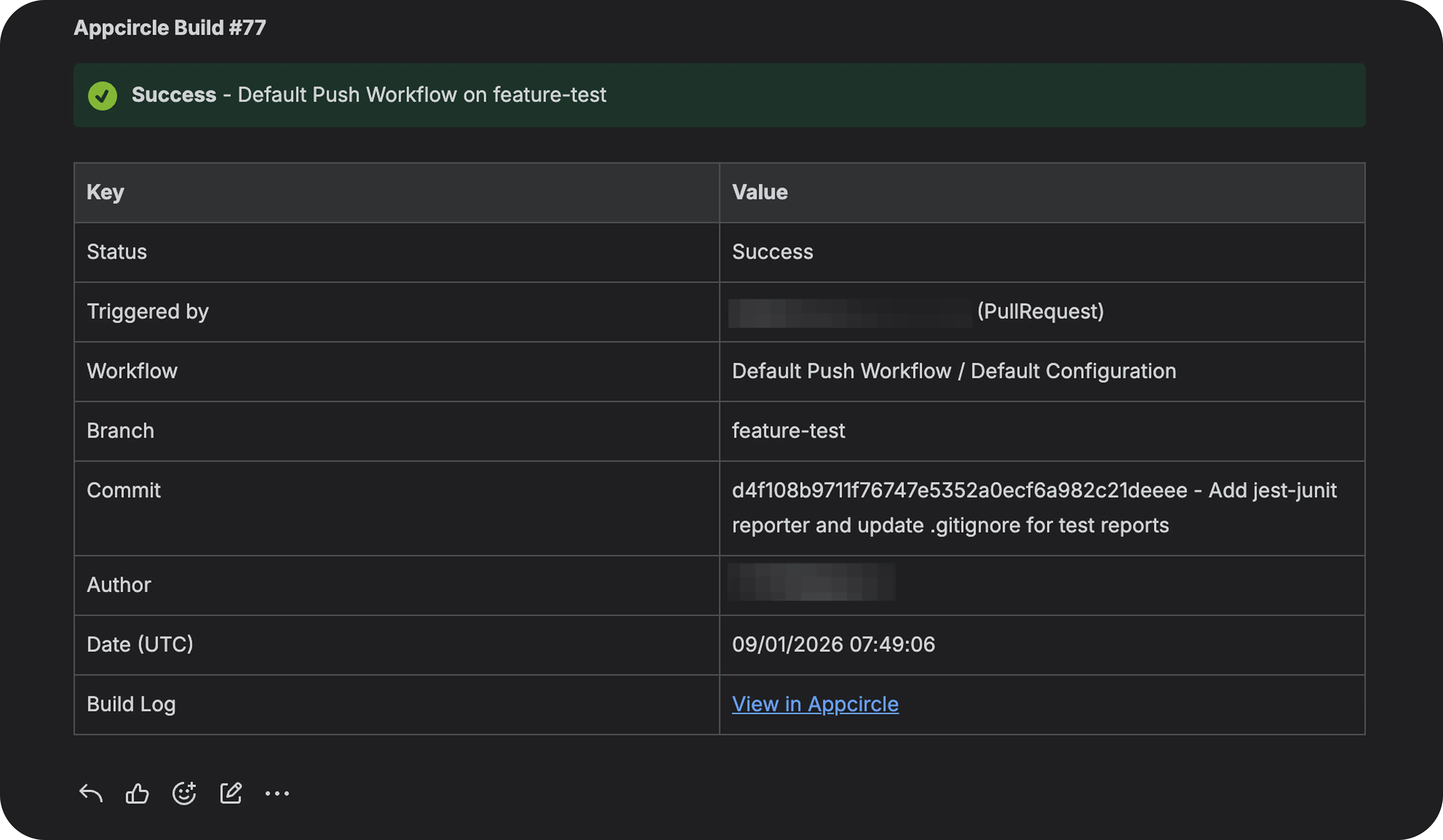
Here is what that looks like in practice. A developer works on a branch and the build runs as usual. When it finishes, the ticket on the board carries a comment with the commit, the branch, and the build time, and it has moved to the state your team uses for a finished build. QA opens the ticket and sees exactly which commit produced it, instead of asking around.
How to Integrate Jira with Appcircle
Integrating Jira with Appcircle is straightforward. Here’s how it works:
1. Add the Jira Comment step: Drop the Jira Comment step into your workflow, after the steps whose result you want reported.
2. Point it at the right issue: Appcircle can read the issue key from your branch name, so the same workflow works across all your branches rather than being wired to one fixed issue.
3. Decide what success and failure mean: Choose whether a build result should also move the issue, and which transition runs when a build passes or fails. Transitions go in by the name they already have in your Jira workflow, so there is no ID to look up.
4. Customize the comment: The default template already carries the commit, branch, and build time. You can add whatever build context your team looks for.
For detailed instructions, check out the Jira Comment documentation.
Benefits of Appcircle’s Jira Integration
Once the pipeline reports to Jira on its own, a few things change for the whole team:
- Fewer manual updates: Comments and status changes happen as part of the build, not as a chore afterwards.
- A board you can trust: The status of an issue reflects a real build result, which is what makes a board useful for planning.
- Faster testing cycles: Testing starts from the ticket instead of a message asking whether the build is ready. Pair it with testing distribution and the whole handoff lives in one place.
- Traceable releases: Every issue carries the commit and branch it was built from, so your Jira project and your CI/CD pipeline tell the same story when you need to reconstruct what went into a store submission.
Why Should You Integrate Jira with Appcircle?
Let’s face it: manual task tracking is tedious, prone to errors, and often gets overlooked. When developers forget to update Jira, it creates bottlenecks for team leads and project managers, slowing down the entire workflow.
Integrating Jira with Appcircle’s CI/CD platform ensures:
- Improved Productivity: Automation frees up your team to focus on more meaningful work.
- Simplified Task Tracking: Effortlessly track task progress across your team with automated updates.
- Fewer Manual Errors: Automated updates mean fewer mistakes in issue tracking.
- Less Burden on Team Leads: Allow team leads to concentrate on critical tasks instead of chasing updates.
It fits how enterprise teams run Jira, too. Both Jira Cloud and self-hosted Jira are supported, each with its own authentication method.
Conclusion
Jira is already a powerhouse for project management. Connecting it to Appcircle is what keeps it honest, because the board updates from build results rather than from memory.
If you’re ready to simplify your mobile app development process and supercharge your workflows, integrate Jira with Appcircle today. It’s a smarter, faster way to keep your projects on track and your team focused on what matters most: building amazing apps. Start for free and add the Jira Comment step to your first workflow.
Frequently Asked Questions
How do I update a Jira issue automatically from a CI/CD pipeline?
Add a step to your build workflow that reports to Jira. In Appcircle, the Jira Comment step sits after your build steps and comments on the issue with the commit, branch, and build time. It can also move the issue to a different status depending on whether the build passed or failed.
How does the pipeline know which Jira issue a build belongs to?
It reads the issue key from the branch name, so nobody types a ticket number into the workflow. The same workflow then works across all your branches rather than being wired to one fixed issue.
Can I automate Jira issue updates on a self-hosted Jira instance?
Yes. Both Jira Cloud and self-hosted (on-premise) Jira are supported, each with its own authentication method. Credentials are stored as secret environment variables rather than in the step itself.