



Azure Boards is a popular tool for agile project management, offering capabilities to organize, plan, and track work efficiently. While it integrates seamlessly with Azure DevOps for various software projects, its application in mobile app development introduces unique opportunities and challenges.
The challenge is specific. In most web projects, a merge is close enough to a release that a work item can be closed with confidence. On mobile, there is a long stretch between merged code and a working app: the build, code signing, distribution to testers, store review, and a staged rollout. Every one of those steps happens outside Azure Boards, which means the board only stays accurate as long as someone keeps updating it by hand.
This guide explores how Azure Boards can streamline mobile app development and how Appcircle keeps your work items in sync with what your builds are actually doing.
Why Use Azure Boards for Mobile App Development?
Mobile app development projects often involve complex workflows, cross-functional teams, and tight deadlines. Azure Boards provides several features to manage these challenges effectively:
- Customizable Work Items: Define and track tasks, bugs, and features tailored to your development process.
- Kanban and Scrum Boards: Visualize workflows and manage sprints for efficient team collaboration.
- Integrated Analytics: Leverage built-in reporting to monitor progress and identify bottlenecks.
For mobile app teams, Azure Boards offers a centralized way to organize tasks across iOS, Android, and hybrid development projects.
Key Features of Azure Boards for Mobile Teams
1. Task Management
Azure Boards allows teams to create and assign work items specific to mobile app projects, such as:
- Platform-Specific Tasks: Define separate tasks for iOS and Android features.
- Bug Tracking: Log and prioritize bugs to ensure smoother app functionality.
- Release Planning: Organize tasks by milestones for app store submissions or beta releases.
2. Collaboration Across Teams
Mobile app development often involves developers, designers, and QA testers. Azure Boards provides tools to:
- Assign tasks and track status across cross-functional teams.
- Integrate with GitHub or Azure Repos for seamless code tracking.
- Utilize notifications and updates to keep everyone aligned.
3. Workflow Customization
Whether you’re following Scrum or Kanban, Azure Boards can adapt to your team’s methodology. Mobile teams benefit from:
- Custom swimlanes for platform-specific workflows.
- Progress tracking for testing and app store submissions.
Challenges of Using Azure Boards for Mobile App Development
While Azure Boards provides robust project management tools, it lacks mobile-specific features that developers need to streamline their workflows. Here are some limitations:
- No Native Mobile CI/CD Integration: Teams need separate tools to automate builds, tests, and deployments.
- Limited App Store Integration: Azure Boards does not offer built-in publishing features for app stores like Apple App Store or Google Play.
- Manual Configuration: Mobile development workflows often require custom configurations and scripts.
The result is familiar to most mobile teams. Developers maintain two sources of truth. QA asks which build to test. Team leads chase status updates instead of removing blockers. Sprint reports describe a sprint that did not quite happen.
Enhancing Azure Boards Workflows with Appcircle
Appcircle complements Azure Boards by filling the gaps in mobile app development workflows. Here is how:
1. Automated Work Item Updates
The Azure Boards component is a step you add to your Appcircle build workflow. When the step runs, it adds a comment to the work item and can change its state based on the result of your workflow.
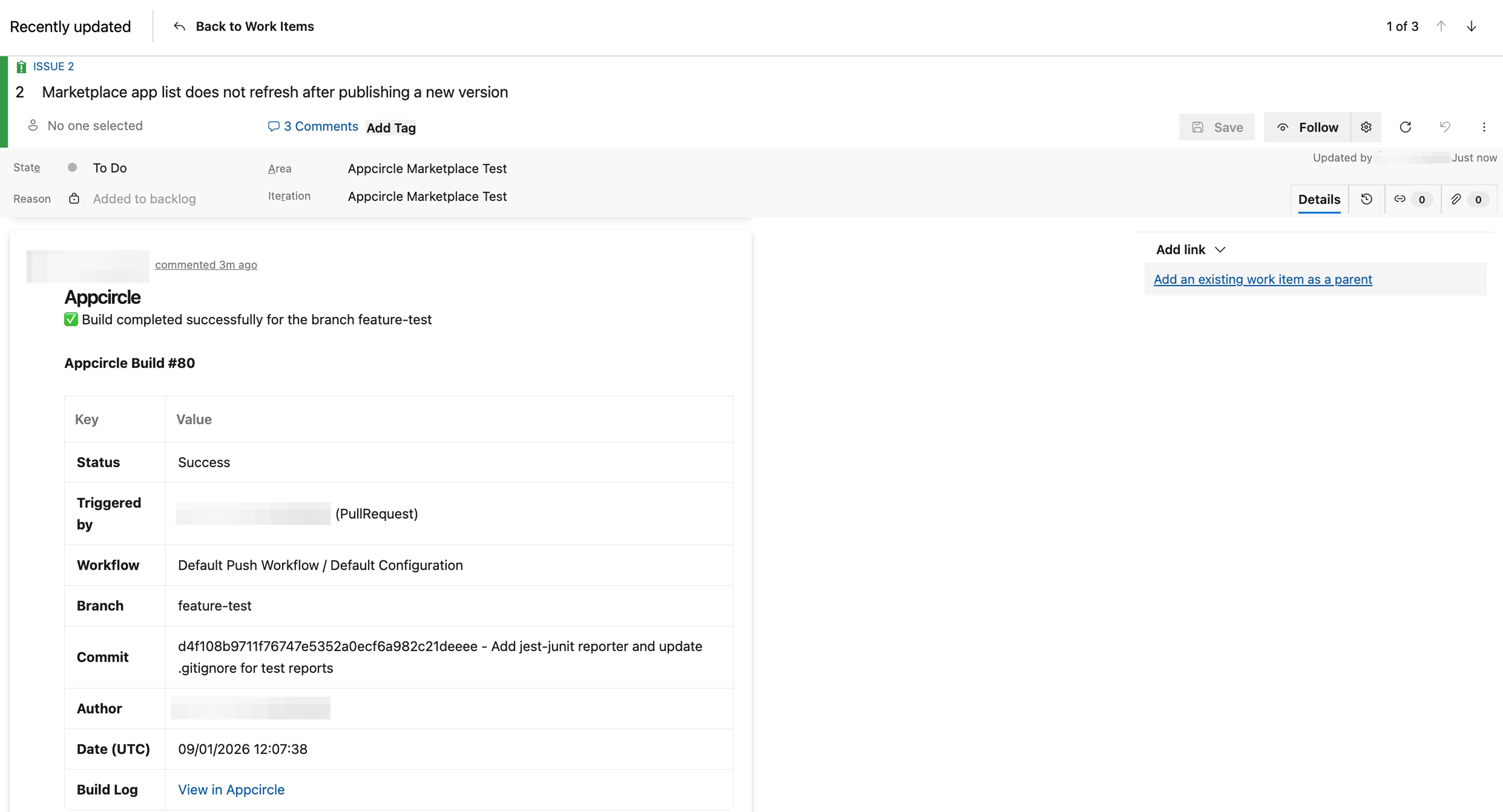
- The comment carries the build record. Appcircle provides a default template that adds the commit message, the commit hash, and the workflow name to the work item, and you can customize it using HTML.
- State changes are optional. If you add state names for successful and failed steps, the component changes the work item state according to the result of your workflow. Leave them empty and the comment is posted without touching the board, which is a good starting point for teams that want the record before they want the automation.
- Failed builds can move work items backward. This is the part most setups are missing. Without it, a resolved work item stays resolved even when nothing was produced, and QA finds out the hard way. Where you place the step in your workflow determines what gets recorded, so the board reflects the outcome you actually want to track.
- Self-hosted Azure DevOps is supported. If your organization runs Azure DevOps on its own infrastructure, the step points at your instance URL instead of the hosted one.
For configuration details and the full input reference, see the Azure Boards step documentation.
2. Mobile CI/CD Automation
Appcircle automates the rest of the mobile lifecycle for iOS, Android, React Native, and Flutter apps, from the build itself to the store submission:
- Build Automation: Set up workflows without scripting for faster builds. Builds can run manually or automatically through triggers on push, on merge or pull request, on tag push, or on a schedule.
- Simplified Code Signing: Manage Apple certificates and provisioning profiles for iOS and keystores for Android in one place, with expiration reminders and renewal handled from the same screen.
- Testing Distribution: Distribute apps to testers for faster feedback, so the state change on the board is backed by something installable.
- App Store Publishing: The Publish to Stores module includes a predefined flow for submitting to the Apple App Store, Google Play, Huawei AppGallery, and Microsoft Intune, and the flow can be customized to fit your release process.
Together, these complement Azure Boards with the mobile CI/CD practices it was never designed to cover, while the Azure Boards step keeps your work items in sync with the builds behind them.
Integrating Appcircle and Azure Boards
To maximize efficiency, teams can integrate Azure Boards with Appcircle’s mobile CI/CD platform. Here’s an example workflow:
- Plan and Assign Tasks: Use Azure Boards to define tasks for development, testing, and deployment.
- Automate Builds and Tests: Trigger builds in Appcircle for each completed task or pull request.
- Track Progress: Use Azure Boards to monitor progress while Appcircle handles the technical workflows.
- Distribute and Deploy: Appcircle manages app distribution and publishing, while Azure Boards logs the release tasks.
This integration allows teams to leverage the strengths of both platforms without compromising productivity.
Conclusion
Azure Boards is a versatile tool for managing mobile app development projects, providing structure and visibility for teams. However, its lack of mobile-specific features can limit its effectiveness for end-to-end workflows. By integrating Appcircle, teams can enhance their Azure Boards workflows with mobile CI/CD automation, app store publishing, and streamlined code signing.
To unlock the full potential of your mobile app development pipeline, explore how Appcircle can seamlessly complement your Azure Boards workflows.
FAQs
1. Is Azure DevOps a CI/CD tool?
Yes, among other things. Azure DevOps is a suite, and Azure Pipelines is the service within it that builds and deploys code. Azure Boards is a separate service in the same suite, where tasks, bugs, and stories are tracked. Because the two are distinct products, a team can keep planning in Azure Boards while running its mobile builds on a different platform.
2. Does the Azure Boards integration work with self-hosted Azure DevOps?
Yes. The step accepts a self-hosted instance URL in place of the hosted Azure DevOps address, so teams running Azure DevOps on their own infrastructure get the same automation.
3. What happens to the work item if the build fails?
If you have configured a state name for failed steps, the work item moves to that state and receives a comment identifying the failed build. If you have not configured one, only the comment is posted and the board is left as it is.
4. Can we customize the comment?
Yes. The default template adds the commit message, the commit hash, and the workflow name, and you can modify it using HTML.