

Android App Testing
Complete guide to Android testing covering unit tests, UI tests, E2E testing, common challenges & best practices, automation strategies, emulator vs real device testing, and beta testing & distribution through Google Play testing tracks and QA distribution.
What is Android App Testing?
Android app testing validates that your application works as intended across diverse devices, Android versions, screen sizes, and real-world conditions. It catches bugs early, safeguards critical user flows like sign-in, payments, and onboarding, and ensures new changes don't break existing functionality.

A strong testing strategy layers multiple approaches. Fast automated tests deliver quick feedback on every pull request, while higher-level tests verify full user journeys. Manual and beta testing provide the human touch, revealing hard-to-automate issues like confusing UX or device-specific quirks.
Beyond defect detection, Android testing reduces release risks, accelerates iterations, and builds reliable pipelines by making quality checks repeatable and automated.
Types of Android App Testing
- Functional Testing: Verifies that each feature produces the correct result, not just the happy path. This includes edge cases like expired sessions, empty carts, offline mode, and error handling.
- UI/UX Testing: Confirms the UI renders correctly, and interactions feel intuitive for users. This includes navigation flows, gestures, component states (loading, success, empty, error), and visual consistency across screens.
- Performance Testing: Measures the app's responsiveness and efficiency under real-world use. Key metrics include cold start time, scrolling smoothness (jank), memory growth, battery drain, and network usage.
- Compatibility Testing: Validates reliable performance across Android OS versions (API levels) and device variety. It addresses OEM skins, screen sizes, chipsets, foldables, and vendor-specific quirks.
- Security Testing: Checks end-to-end authentication, authorization, and sensitive data handling (secure storage, permissions, TLS, token handling). Integrate SAST tools like SonarQube or Fortify for early vulnerability detection, or run MobSF for mobile-specific coverage: its source code scan flags unsafe local storage, hardcoded tokens or secrets, and more before the build, and its binary scan checks the compiled app's permissions, TLS/network configuration, and more.
- Localization Testing: Validates that languages and regional formats work without layout breaks (text expansion, dates, numbers, RTL).
- Regression Testing: Safeguards critical user journeys after changes, preventing silent breaks in previously working features.
- Accessibility Testing: Confirms usability with assistive tech and inclusive UI defaults. Standard checks: TalkBack labels, focus order, color contrast, touch target sizes, and meaningful content descriptions.
- Snapshot Testing: Catches unintended UI changes by comparing snapshots (full screens or components) across builds.
Common Challenges in Android Testing
1. Device Fragmentation
Android powers thousands of devices with diverse screen sizes, hardware, and OS versions. Testing every configuration is impossible, often leading to device-specific bugs.
Solution: Leverage cloud device farms (like AWS Device Farm), prioritize audience-representative devices, use responsive layouts, and test popular subsets.
2. Flaky Tests
Tests that pass and fail intermittently without any code changes are a major pain point. Flakiness often stems from timing issues, network dependencies, or improper test isolation.
Solution: Implement proper waiting mechanisms (Idling Resources), mock network responses, ensure test isolation, and use retry mechanisms sparingly while addressing root causes.
3. Slow Test Execution
UI tests, especially Espresso and instrumentation tests, can take significant time to run. This slows down the feedback loop and discourages developers from running tests frequently.
Solution: Parallelize and split tests into groups, integrate CI/CD automation, and balance fast unit tests with essential slower UI tests.
4. Managing Test Data
Setting up consistent test data across different test runs and environments is challenging. Tests may fail due to stale data or conflicts between test cases.
Solution: Use dependency injection for mocks, robust setup/teardown, and in-memory databases for isolation.
5. Keeping Up with OS Updates
Google releases new Android versions annually, often introducing breaking changes, new permissions, or deprecated APIs that can affect test stability.
Solution: Track release notes, test betas early, and embed backward compatibility in your CI/CD pipeline.
6. Security Vulnerabilities and Data Protection
Android apps often handle sensitive user data, authentication tokens, and API keys. Ensuring these are properly secured during testing, and that security flaws don't slip into production, is a constant concern.
Solution: Integrate static analysis tools (like Lint security checks), perform penetration testing, use secure storage mechanisms, and never hardcode sensitive data. Include security-focused test cases in your test suite.
7. Simulating Real-World Network Conditions
Apps behave differently under varying network conditions such as slow 3G, intermittent connectivity, or complete offline scenarios. Testing only on stable Wi-Fi can hide critical bugs users will encounter in the real world.
Solution: Use network throttling tools and emulator settings to simulate poor connectivity. Implement proper offline handling and test edge cases like mid-request disconnections.
8. Localization and Regional Compliance
Supporting multiple languages, date formats, currencies, and regional regulations adds significant testing complexity. A small translation error or format mismatch can break the user experience.
Solution: Automate screenshot testing for different locales, use pseudolocalization to catch hardcoded strings early, and maintain a localization testing checklist for each target region.
9. Inconsistent Feedback Loops
When test results take too long or vary between runs, developers lose trust in the testing process. This leads to ignored failures and reduced code quality over time.
Solution: Optimize your CI/CD pipeline with parallel execution, caching, and test sharding. Establish clear ownership for flaky tests and track metrics to identify bottlenecks.
The Android Testing Pyramid
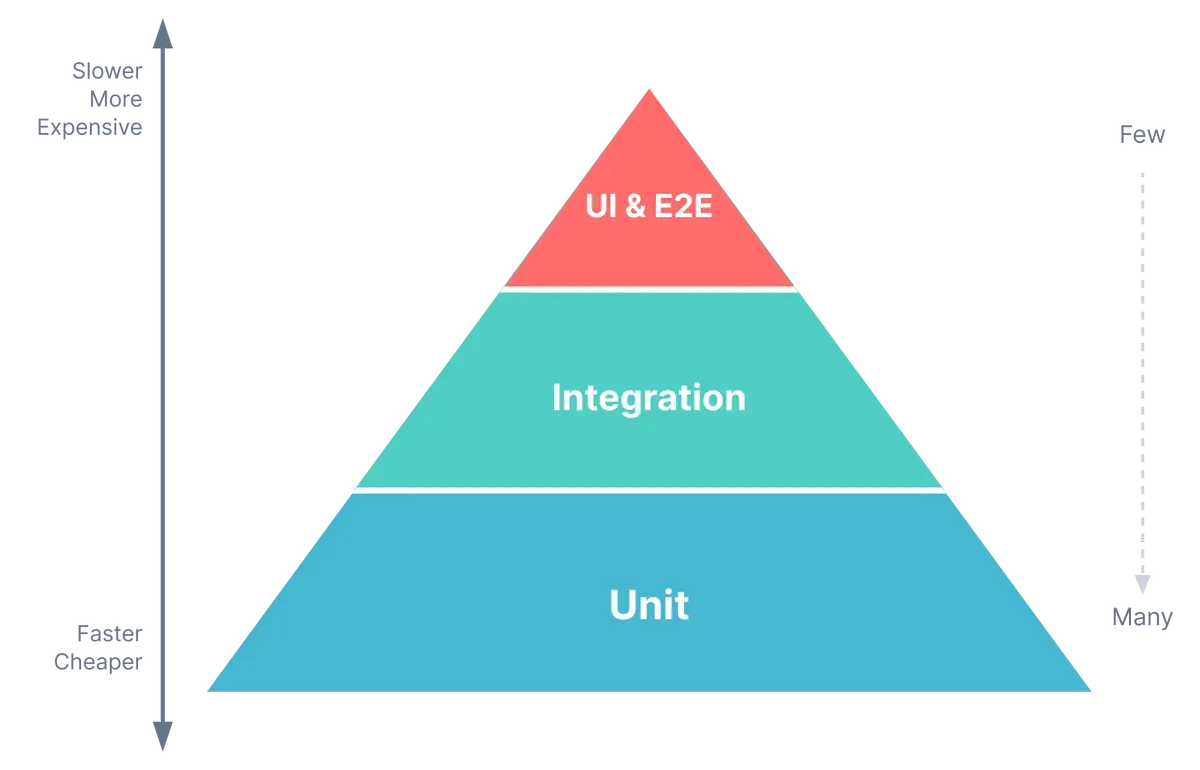
The Android Testing Pyramid is a practical way to design your test suite so you get fast feedback without losing confidence in your Android app releases. The core idea is simple: put most of your coverage in fast, lightweight tests (unit and integration), and rely on a smaller number of slower UI and end-to-end checks to validate the most important user journeys.
This matters because UI and E2E tests are powerful but expensive. They often run slower, require more infrastructure, and can become flaky due to timing, animations, background work, or device variability. A pyramid-shaped strategy helps teams catch the majority of issues early and keep CI pipelines predictable, while still running a focused set of high-confidence checks before releasing.
Unit Tests
Unit tests validate small pieces of code in isolation, such as business rules, data mapping, validators, and view-model logic. Because they run quickly and are easier to keep deterministic, unit tests are the best place to cover edge cases and protect refactors. They will not fully guarantee that the Android framework, device behavior, or real integrations work end-to-end, but they are the foundation of a stable test suite.
Best for: Catch logic bugs early with fast, deterministic tests that run on every pull request.
Integration Tests
Integration tests confirm that multiple parts of the app work together correctly. In Android, this often means validating the boundaries where issues commonly happen: networking and serialization, repository logic, local persistence (such as Room), caching, and dependency injection wiring. These tests are slower than unit tests, but they catch real-world breakages that unit tests cannot see, like a changed API contract, a migration problem, or an incorrect dependency graph.
Best for: Validate module boundaries and real component interactions before issues reach UI or release testing.
UI & End-to-End (E2E) Tests
UI and E2E tests simulate user behavior through the interface and, in E2E cases, can involve the full stack behind the app. They provide the highest confidence that key journeys work, but they are also the most fragile and time-consuming to maintain. The most reliable approach is to keep this layer intentionally small and focused on business-critical flows, then run broader suites on a schedule (nightly) or before release, rather than blocking every pull request.
Best for: Prove that a small set of critical user journeys works from the user's perspective before release.
In addition to the traditional Android testing pyramid, you can also look at the 5-layer test pyramid concept offered by Android (unit → component → feature → application → release candidate).
Android Unit Testing
Android unit testing locks down your app's logic before it ever touches a device. Instead of clicking through screens, you test the rules behind the UI: like validation, calculations, mapping, decision-making, and view-model behavior. Done well, unit tests become your fastest safety net, giving you confidence to refactor and release changes without manually re-checking the same flows.
In Android projects, "unit test" usually means a local test that runs on the JVM (in src/test) and finishes in seconds. That speed makes Android unit tests ideal for pull requests: they catch regressions early and keep your feedback loop tight. For more information, check out our blog post Android Code Review Practices for Efficient Pull Requests.
Example Android Unit Test Scenario
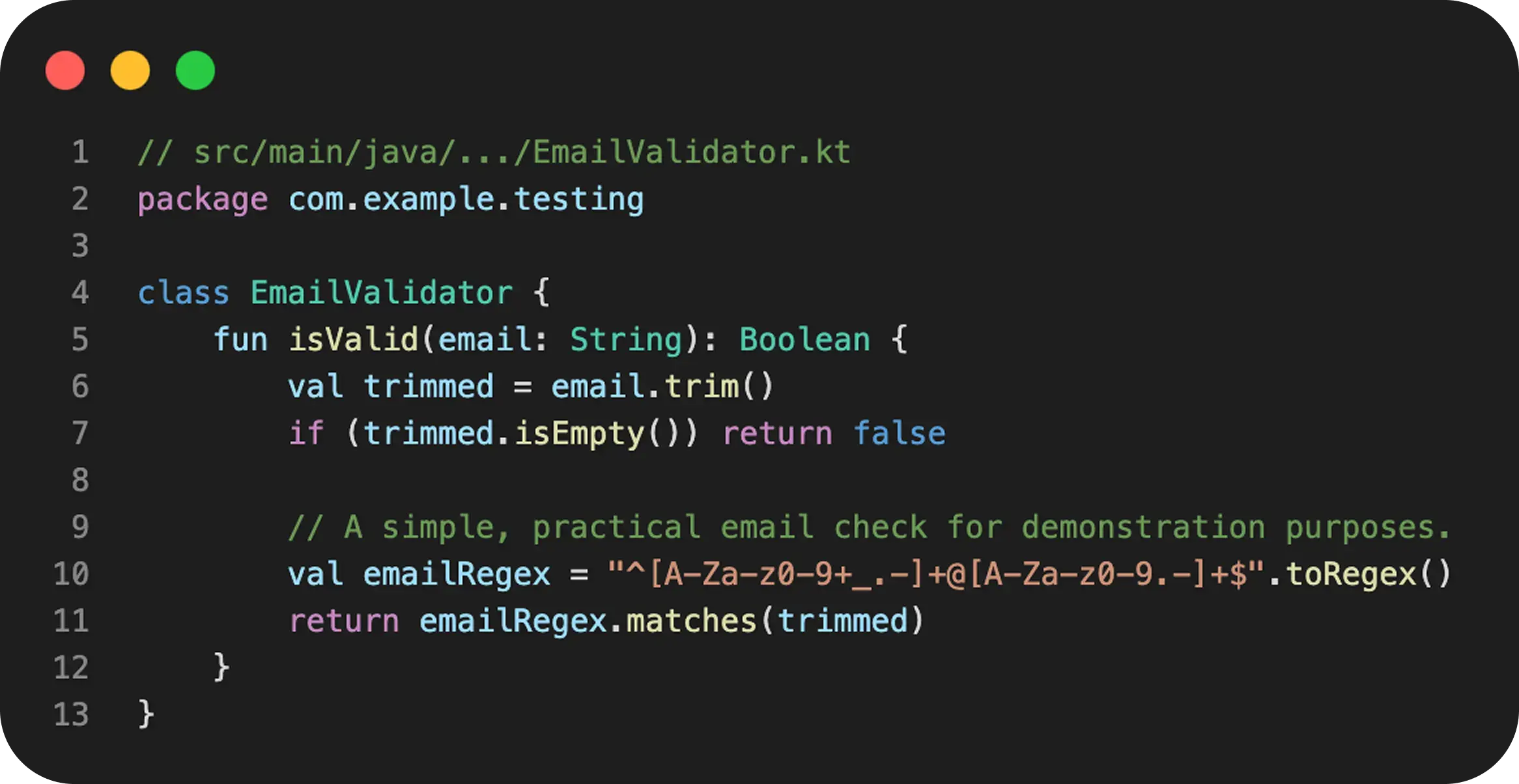
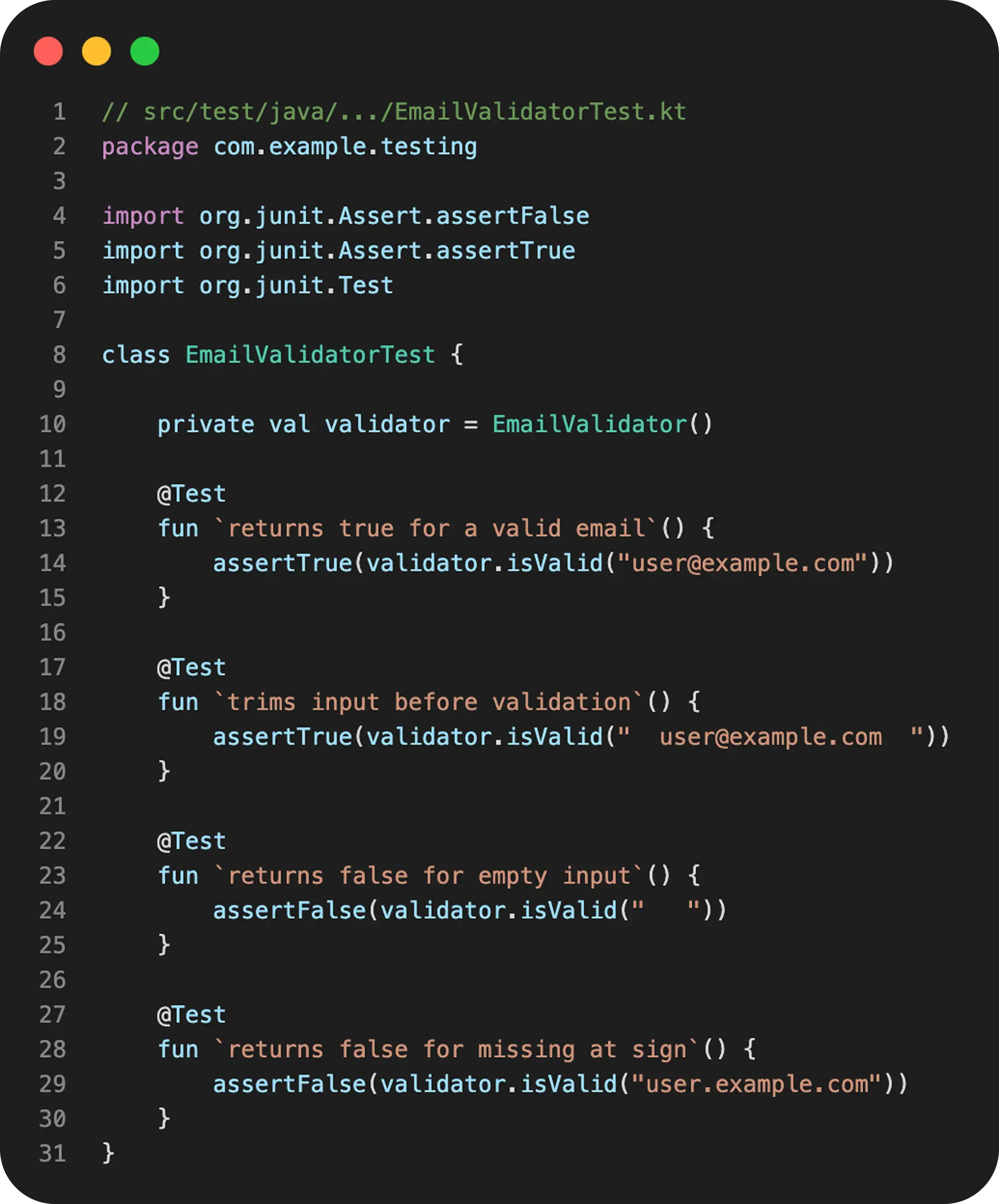
Scenario: Let's say your app has a simple validator that decides whether an email input is acceptable. This is pure logic, so it's perfect for unit testing.
Code Under Test:
Unit Test for This Scenario:
Android Unit Testing Best Practices
- Keep unit tests small and focused: One behavior per test makes failures easy to interpret.
- Aim for deterministic results: Avoid time, random values, and global state unless you control them.
- Prefer pure logic in unit tests: Business rules, mapping, formatting, and validation give the highest ROI.
- Avoid Android framework dependencies: If a test needs an
Activity,Context, orView, it is usually an instrumented test. - Use clear naming: Test names should describe behavior and expected outcome (given-when-then style works well).
- Cover edge cases intentionally: Empty inputs, nullables, boundary values, and error paths are where bugs hide.
- Mock only what you must: Too many mocks can make tests brittle; prefer fakes for complex dependencies.
- Treat tests as production code: Refactor tests, remove duplication, and keep them readable.
- Integrate unit tests into CI/CD: Run unit tests automatically on every commit or pull request in your CI pipeline to catch issues early and protect code quality over time.
Platforms like Appcircle make this straightforward. They run unit tests as part of an automated Android CI workflow and expose results as build artifacts, so every build gets fast, consistent feedback.
Android UI & E2E Testing
UI and end-to-end tests validate what users actually experience on the screen. They help you catch issues that unit and integration tests cannot see, such as broken navigation, missing permissions, incorrect view states, or problems that only show up when the full app is running on a device.
The key is to be intentional with scope. UI tests are slower and more fragile than unit tests, so you typically keep them focused on the most valuable user flows, and rely on lower-level tests for broader coverage.
What is Android UI Testing?
Android UI testing verifies your app's behavior through the user interface on a real device or emulator. These tests are usually instrumented tests placed under src/androidTest, because they run with the Android runtime. The most common framework is Espresso, which interacts with UI elements inside your app process. When you need to automate flows that cross app boundaries (for example, interacting with a system permission dialog or switching to another app), teams often use UI Automator.
UI tests are typically executed via Gradle on an emulator or device, for example with ./gradlew connectedAndroidTest.
Example Android UI Test Scenario
Scenario: On a login screen, if the user taps Sign in with an invalid email, the app shows an inline error message.
UI Test For This Scenario:
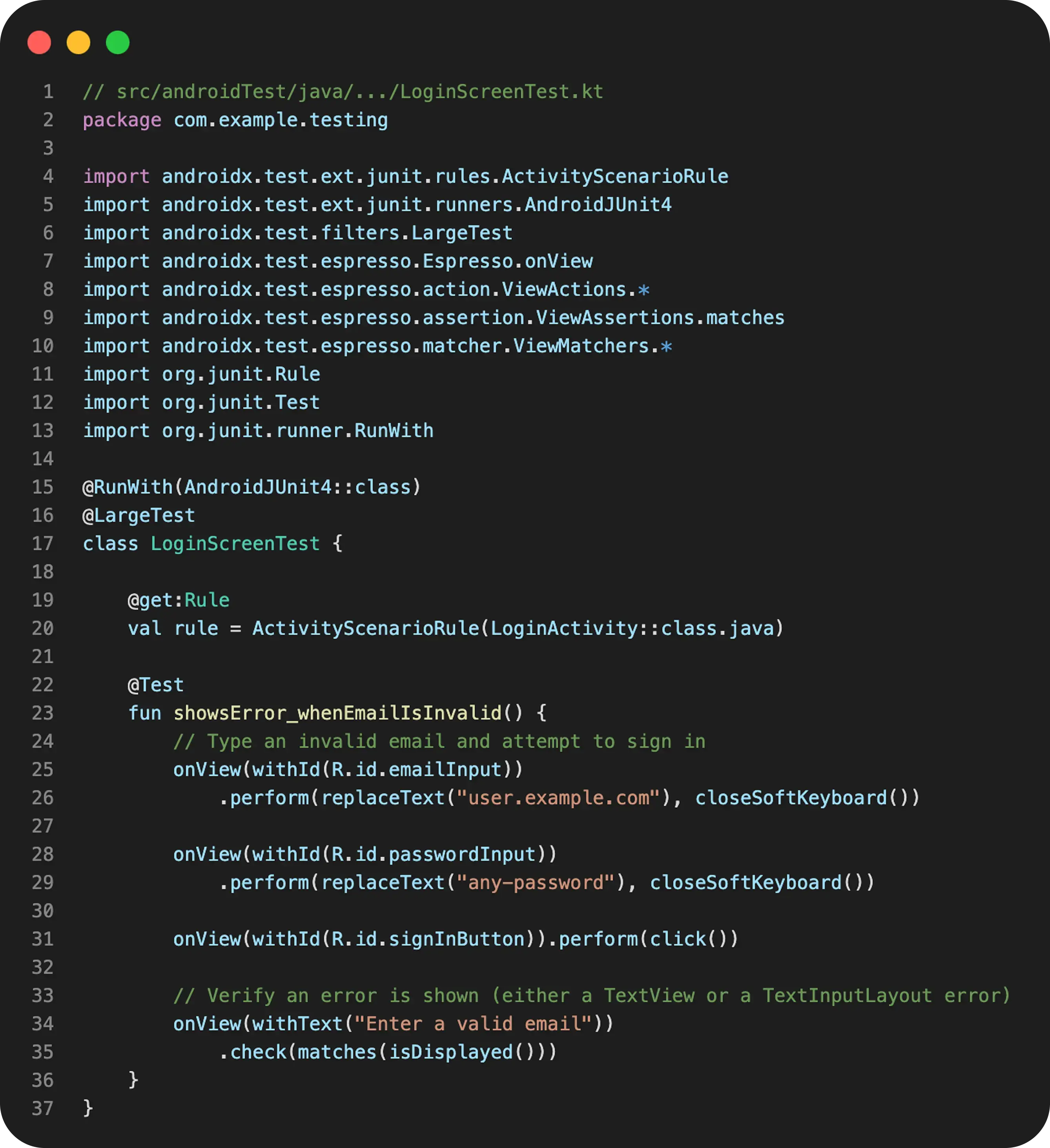
Note: This test assumes your login UI has view IDs likeemailInput,passwordInput, andsignInButton, and that invalid input renders an error message such as "Enter a valid email".
Android UI Testing Best Practices
- Test critical journeys, not every screen: Keep UI tests focused on flows that protect releases (login, onboarding, purchase, key navigation).
- Prefer stable selectors: Use consistent view IDs or semantic selectors; avoid brittle matchers based on positions or dynamic text.
- Fight flakiness proactively: Disable system animations during test runs and avoid timing assumptions.
- Synchronize async work properly: Use Espresso's synchronization (and Idling Resources when needed) instead of sleeps.
- Reset state between tests: Ensure each test starts from a clean state (fresh install state, cleared storage, deterministic test accounts).
- Use Test Orchestrator for isolation: Run each test in its own instrumentation instance to reduce state leakage.
- Make test data deterministic: Use seeded data, predictable responses (mock server), or controlled backend environments.
- Capture artifacts for debugging: Store logs, screenshots, and videos when a test fails.
- Keep the UI suite small and fast: If a UI test is slow, consider pushing coverage down to unit/integration and keep UI checks as smoke coverage.
- Run UI tests in CI/CD with consistency: Use pinned emulator images and consistent device profiles. In Appcircle, you can run instrumented UI tests in your Android CI workflow and surface test reports and artifacts per build.
What is Android E2E Testing?
End-to-end (E2E) tests validate the entire user journey, from the user interface to the services behind the application. While a UI test might validate screens and view states using mocked dependencies, an E2E test aims to confirm that real integrations behave correctly together: authentication, APIs, data persistence, and core flows.
Because E2E tests depend on more moving parts (backend availability, test accounts, environments, network conditions), they are the most expensive tests to run and maintain. The best strategy is to keep E2E coverage limited to a small set of must-not-break scenarios and run them on a schedule (nightly) or before release.
Example E2E Testing Scenario
Scenario: A user signs in, loads their profile, updates a setting, and verifies the change persists after app restart.
- Setup: Use a dedicated test account in a staging environment and ensure the backend has predictable data for that user.
- Flow: Launch the app → sign in → navigate to Profile → change a setting (for example, notification preference) → confirm success toast/state.
- Verification: Restart the app → sign in again (or restore session) → confirm the setting is still applied and reflected in the UI.
- Failure signals: API errors, incorrect persistence, inconsistent UI state, unexpected logout, or stale cached data.
Strategies for Android App Testing
A strong Android testing strategy is not about choosing between manual or automated testing, it is about using each method where it adds the most value. Manual testing is excellent for exploratory discovery and UX feedback, while automation protects critical flows at scale and prevents regressions. The most effective teams combine both, then run automated checks continuously through CI/CD to keep releases predictable.
A practical way to think about strategy is to map tests to risk. Use fast automated tests for logic and repeatable scenarios, rely on targeted UI and E2E tests for release confidence, and use manual sessions when you need human judgment (usability, edge-case exploration, device-specific behavior).
Manual Android App Testing
Manual testing is the fastest way to uncover real-world issues that automation may miss, especially early in development or when UX is changing quickly. It is also the best place for exploratory testing, where testers intentionally try unusual paths, interruptions, and edge cases.
Common manual testing activities include smoke testing a new build, validating new UX flows, verifying push notifications, checking permissions behavior, and testing on a small set of real devices.
Best for: Discovering usability issues and unexpected bugs through human exploration.
Automatic Android App Testing
Automated testing makes quality repeatable. Once a test is automated, you can run it on every change, on multiple devices, and across multiple configurations without repeating the same manual effort. Most Android teams automate at multiple levels: unit tests for logic, integration tests for contracts and boundaries, and a small set of UI or E2E tests for critical journeys.
When you automate, tool choice should match the scope:
Common Testing Tools and Frameworks for Android App Testing Automation
- Appium: Cross-platform UI automation (Android and iOS) using the WebDriver model. Often used when teams want a single approach across platforms.
- BrowserStack App Automate: A cloud device testing platform that can run Espresso/UI Automator (and other frameworks) on real devices.
- Espresso: A UI testing framework for in-app interactions. It is a common choice for stable UI checks inside your app process.
- LambdaTest: A cloud testing platform for running mobile app tests on real devices and automating execution at scale.
- Maestro: Fast, readable mobile UI automation written in a simple flow format, often used for high-level user journeys and quick smoke coverage.
- Testinium: Device lab and test management focused tooling (often used for enterprise setups), supporting running tests on real device pools.
- UI Automator: Useful when tests must interact with system UI or cross app boundaries (permissions, settings, external apps).
Best for: Scaling repeatable checks and preventing regressions with consistent automated coverage.
Automating Android Tests in CI/CD
CI/CD is where testing becomes consistent. Instead of relying on someone to "remember to run tests," your pipeline validates every change in the same clean environment and reports results back to the team. A typical Android pipeline builds the app, runs unit tests first (fast feedback), then runs instrumented UI tests only when needed (higher confidence for critical flows).
The most practical approach is to split tests by speed and purpose. Keep a fast PR gate suite that runs on every commit or pull request, and run heavier UI/E2E and broader device coverage on a nightly schedule.
Real-Life Example: Automated Android App Testing on a Pull Request
- A developer opens a pull request for a new feature or bug fix.
- The CI pipeline triggers automatically and checks out the PR branch.
- The pipeline restores dependencies and builds in a clean environment.
- Unit tests run as the first quality gate (for example, via
./gradlew test) to validate updated logic. - If the change touches critical screens, the pipeline also runs instrumented tests on an emulator (for example, via
./gradlew connectedAndroidTest) to verify key UI flows. - Test reports and artifacts are published so failures are easy to debug (logs, screenshots, and coverage if available).
- If any test fails, the pipeline marks the PR as failing, and the developer gets actionable output to fix the issue.
- If everything passes, the PR is eligible for review and merge, ensuring only tested code reaches the main branch.
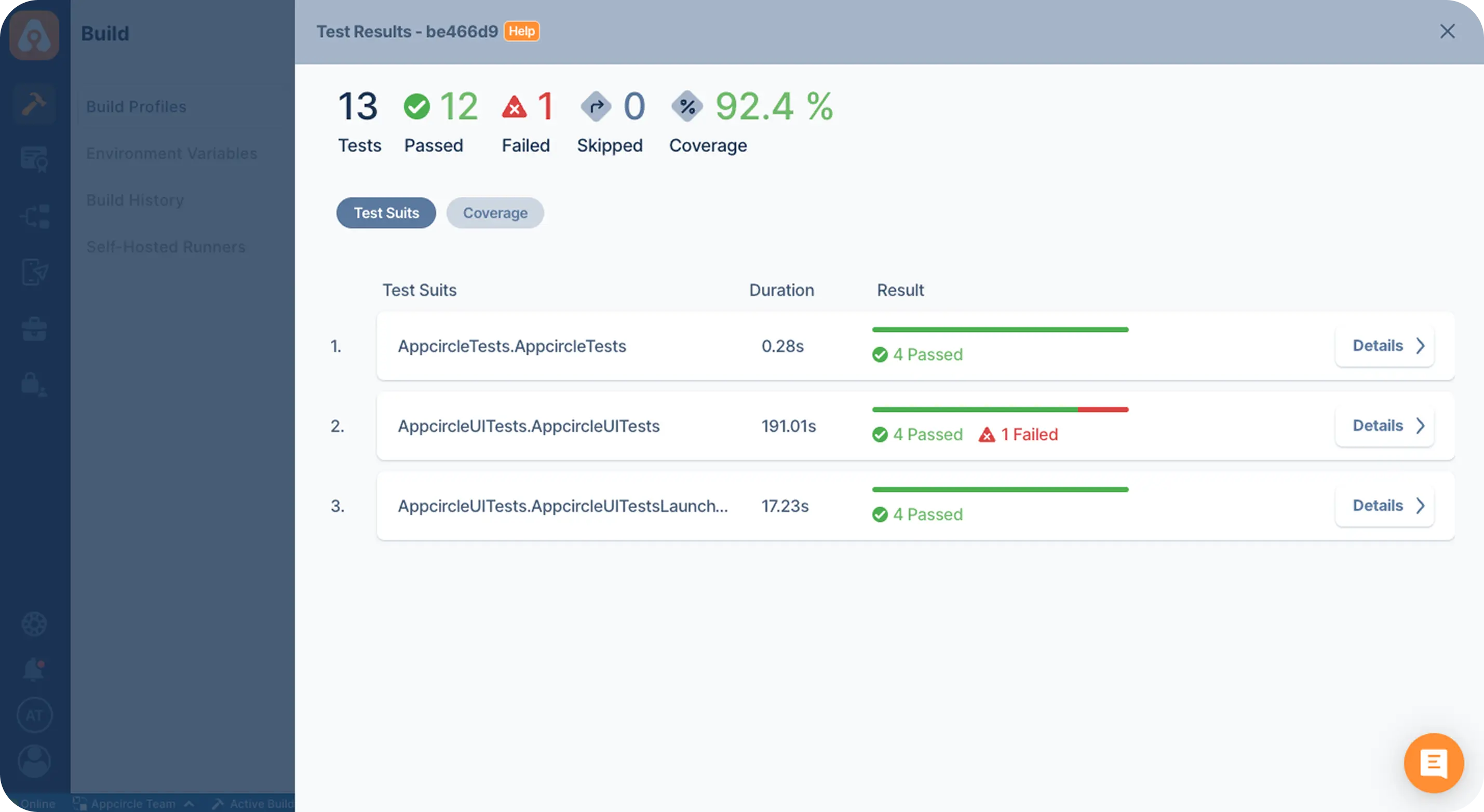
Platforms like Appcircle make this Android app testing process easier by turning test execution into reusable workflow steps. For example, you can add an Android Unit Tests step to run unit tests during builds, then follow it with Test Reports for Android to surface JUnit results and coverage reports in a readable format. For instrumented UI checks, you can build the test APK with Android Build for UI Testing and run UI tests as part of your Android CI workflow, while keeping reports and artifacts attached to each build for consistent, fast feedback.
Android Emulators vs Real Device Testing
Both emulators and real devices are essential in Android app testing. Emulators are fast, reproducible, and cost-effective for CI, while real devices uncover hardware and OEM-specific issues you cannot fully simulate. The goal is not to pick one, but to use each where it gives the most reliable signal.
A common strategy: Run most automated checks on emulators for quick feedback, then validate critical flows on real devices before wider beta testing or production releases.
When to Use Android Emulators
Use emulators for fast, repeatable coverage in CI tool, especially when your scenarios do not depend on physical hardware or OEM-specific behavior.
- Fast feedback in CI/CD: Emulators are ideal for pull requests and smoke tests because they are easy to start, reset, and run in parallel.
- Broad Android OS coverage: You can quickly validate behavior across multiple Android versions (API levels) without maintaining a large device lab.
- Repeatable, clean environments: Snapshots and fresh emulator images make it easier to avoid "works on my device" issues.
- Most instrumented UI tests: Many Espresso-based UI tests run well on emulators, especially when your flows stay inside the app.
- Early-stage development: Emulators are great for iterating on new screens, layouts, and basic navigation before investing time in device-specific validation.
- Debugging and profiling basics: Emulators are convenient for step-by-step debugging and initial performance checks (but do not treat them as a perfect performance baseline).
When to Use Real Devices
Use real devices when hardware, OEM customizations, or real-world conditions may change results, especially for release validation.
- OEM and device-specific behavior:Manufacturer skins and device-specific constraints can change how apps behave (background limits, WebView quirks, power management).
- Hardware features: Anything tied to real hardware needs a real device (camera quality and focus behavior, GPS accuracy, sensors, NFC, Bluetooth/BLE, biometrics).
- Push notifications and background execution: Real devices surface issues with notification delivery, Doze mode, background restrictions, and app standby behavior.
- Performance and battery validation: Startup time, scrolling smoothness, thermal throttling, and battery impact are best validated on representative physical devices.
- Network conditions and transitions: Real devices better represent flaky networks, switching between Wi-Fi and cellular, captive portals, and airplane-mode edge cases.
- Release confidence: Before releasing or expanding beta access, run a focused smoke suite on a small, representative device matrix (your most-used devices and Android versions).
Android Beta Testing & Distribution
Beta testing shares pre-release builds with a limited audience to validate stability, usability, and real-device behavior before wider rollout. Distribution handles the practical side: delivering the right build to the right people, collecting feedback, and controlling access for safe iteration.
A reliable beta workflow keeps builds traceable (version, commit, release notes), simplifies installation for testers, and builds a clear feedback loop with enough context to reproduce issues.
Google Play Testing Tracks
Google Play provides dedicated testing tracks so you can roll out builds gradually and manage tester access without publishing to production. The main tracks are:
- Internal testing: Ideal for quick smoke validation with a small group (like your team). Builds go live fast.
- Closed testing: For controlled beta groups (QA, stakeholders, selected customers) with managed access.
- Open testing: Broader beta access for larger audiences, still isolated from production.
In practice, teams often start with internal testing for fast iteration, move to closed testing for structured feedback, and use open testing only when they are ready for broader coverage.
Internal Distribution for QA & Stakeholders
Not every test cycle needs to go through an app store track. Internal distribution is useful when you want to share builds quickly with QA and stakeholders, especially for frequent iterations, review builds, or time-sensitive validation. The key requirements are simple installation, access control, and a way to attach context (release notes, build number, environment).
A solid internal distribution flow usually includes a single install link, versioned build history, and lightweight feedback collection (for example, reporting issues with device model, Android version, and repro steps). For enterprise teams, it is also important to control who can download a build and to keep an audit trail of what was shared.
Platforms like Appcircle support this via Testing Distribution, with controlled access and traceable metadata for Android builds.
User Acceptance Testing (UAT)
UAT is where non-engineering stakeholders confirm the app meets business expectations in a production-like flow. It focuses on acceptance criteria and "does this work for the user" outcomes, not deep technical edge cases.
To keep UAT lightweight but effective, define what success looks like up front: the exact scenarios to validate, the test accounts to use, and what counts as a pass or fail. UAT sessions usually cover end-to-end journeys such as onboarding, key feature usage, payments or subscriptions (if relevant), and role-based access.
A simple UAT loop looks like: share a build with short release notes, provide a checklist and a feedback channel, collect issues with enough context (device model, Android version, steps to reproduce, screenshots), and finish with a clear sign-off that documents what was tested, what issues remain, and whether the release is approved or blocked.
Best Practices for Android Testing
1. Balance the test pyramid
Aim for broad coverage with unit and integration tests, then keep UI and E2E tests focused on a small set of business-critical journeys. This prevents slow pipelines and reduces flakiness while still giving you release confidence.
2. Make tests deterministic
A good test should pass or fail for the same reason every time. Control time, randomness, and concurrency (for example by using Kotlin coroutines test utilities and a TestDispatcher), and avoid relying on shared global state that can change between runs.
3. Design for testability
Testing becomes easier when your app architecture supports clear boundaries. Keep business logic out of Activities/Fragments, use dependency injection to swap implementations in tests, and prefer small, composable components that can be validated independently.
4. Treat flaky tests as production bugs
If a UI or instrumented test fails intermittently, fix the root cause instead of adding retries. Common causes include animations, asynchronous work without proper synchronization, and state leakage between tests.
5. Keep test data and environments consistent
Use dedicated test accounts, seeded data, and predictable backend responses for automated suites. Pin emulator images, set locale/time zone, and ensure every run starts from a clean baseline so failures are reproducible.
6. Test on a representative device matrix
You do not need every device, but you do need the right ones. Choose a small set based on your real user distribution (top OEMs, screen sizes, and Android OS versions) and validate critical flows on real devices before releasing.
7. Verify everyone tests the intended build
Make it obvious which build is under validation so results are not polluted by outdated installs or "almost the same" versions. Share builds with clear versioning (version name, version code, build number) and include release notes that match the distributed artifact. If your team frequently tests multiple builds per day, adding a small version badge (for example, build number) to the app icon can save a lot of confusion.
8. Publish reports and artifacts in CI/CD
A failing test is only useful if it is easy to debug. Always publish test results and attach artifacts like logs, screenshots, and videos. In Appcircle, you can surface Android test reports as build outputs, which makes reviewing failures faster and keeps test results consistent across the team.
FAQs
What are the main types of Android app testing?
What is the difference between unit tests and instrumented tests on Android?
How do I run Android unit tests from the command line?
How do I run Android UI tests?
Should I use Espresso or UI Automator?
What causes flaky Android UI tests?
How much test coverage do I need?
How do I structure tests in an Android project?
How can I automate Android tests in CI/CD?
What are Google Play testing tracks and which one should I use?
What is the difference between emulator and real device testing?
Get Started with Appcircle
Save time, reduce costs, and increase developer productivity
Get informed about news, new releases, and mobile DevOps.