



Bugs have been a reality of software development since the first computers were programmed. The best way is to write bug-free code, but this is not always possible. If that fails, we have a responsibility to address them as quickly and effectively as possible. Successfully implementing the code review process is the most significant factor in preventing software errors.
Appcircle values automated code reviews during the pull request phase. Several popular tools are available for Android that simplify and automate various stages of the code review process. Let's explore these tools together.
The tools that support Android code review and CI workflows can be grouped as follows:
- Code Analysis Tools
- Security Tools
- Testing Tools
- App Management Tools
- Issue Tracking Report Tools
1. Code Analysis Tools
First and foremost, code analysis tools are a must-have to spot problems before they snowball. They scan your code for vulnerabilities, performance issues, and security gaps that manual checks can overlook.
Lint and Detekt
Android Lint and Detekt are static analysis tools designed to improve code quality and maintainability in Android development.
- Android Lint: Provided by the Android SDK, it analyzes source code to detect issues such as unused resources, layout performance problems, memory leaks, and security vulnerabilities.
- Detekt: Specifically designed for Kotlin, it identifies common programming errors, performance bottlenecks, usability issues, and deviations from coding standards.
Example Use Cases:
- Code Quality Assurance: Analyze the app's source code to identify potential security flaws, performance bottlenecks, and other issues before releasing to production.
- Detecting Android-Specific Issues: Find and remove unused XML layouts, drawables, or strings, helping to reduce APK size and maintain cleaner code.
- Enforcing Code Style Guidelines: Identify and address deviations from coding standards to ensure consistency across the codebase.
By identifying coding issues early, Lint and Detekt ensure higher-quality Android code reviews and consistent standards.
For more information, please visit the Lint step documentation and the Detekt step documentation.
Danger
Danger automates code reviews through CI tools, aiding both code reviewers and developers who submit pull requests. It reduces the time reviewers spend on routine tasks, allowing more efficient code evaluation.
For detailed information on the benefits of Danger, please refer to the following blog post: Danger in CI: Automate Your Mobile Code Reviews.
Example Use Cases:
- Automating Routine Code Review Checks: Automatically checking for common issues like missing documentation, improper commit messages, or coding style violations (e.g., inconsistent indentation).
- Enforcing Coding Standards: Checking if the pull request follows defined naming conventions for classes, methods, and variables.
- Ensuring Proper Test Coverage: Checking if new code is covered by unit or integration tests before merging.
- Failing the Workflow on Review Criteria: Failing the pull request workflow when critical issues are present, such as failing tests or unapproved dependencies.
For more information about Danger, please visit the Danger step documentation.
Azure DevOps Bot for Detekt Report
Danger does not support Azure DevOps. Teams working there can use the Azure DevOps Bot for Detekt Report step instead, which serves the same purpose from the Detekt side: it analyzes your Detekt report, posts the details to the open pull request, and can change the pull request status.
Example Use Cases:
- Automated Code Quality Feedback: Posting detailed Detekt analysis results, such as rule violations or coding standard breaches, to a pull request in Azure DevOps.
- Streamlining Code Review Processes: Helping reviewers focus on more strategic aspects of the code by automating style and rule enforcement checks.
- Enforcing Project-Wide Coding Standards: Using this step to enforce standards like method complexity limits or consistent naming conventions across the team.
For more information, please visit the Azure DevOps Bot for Detekt Report documentation.
SonarQube
SonarQube allows you to analyze code quality with the SonarQube CLI, helping teams identify and track issues across the codebase. Running it after your test step means the analysis can take test results into account as well.
Example Use Cases:
- Detecting Code Smells: Scanning an Android app's codebase for code smells, such as overly complex methods or redundant logic.
- Identifying Security Vulnerabilities: Analyzing the code of a mobile banking app, uncovering insecure API usage and unsafe data handling practices.
- Enforcing Coding Standards: Ensuring that code pushed by all contributors adheres to agreed coding guidelines, avoiding unnecessary technical debt.
- Monitoring Code Quality: Scheduling regular SonarQube scans to compare the quality of a codebase across different sprints.
For more information about SonarQube, please visit the SonarQube step documentation.
Android Dependency Report
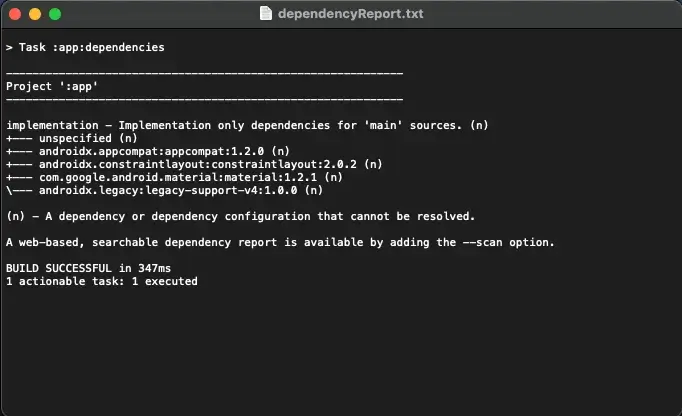
The Android Dependency Report step visualizes the whole dependency tree for every configuration available in the project.
Rendering the dependency tree is particularly useful if you'd like to identify which dependencies have been resolved at runtime. The dependency report always contains declared and transitive dependencies.
Here is an example of the output:
Example Use Cases:
- Resolving Dependency Conflicts: Identifying cases where multiple libraries require different versions of the same dependency (e.g., two libraries using different versions of
Gson). - Ensuring Consistent Dependencies Across Environments: Ensuring that dependencies, especially transitive ones, are consistent across different development environments, preventing issues when building or deploying the app in various stages.
- Tracking Transitive Dependencies: Getting an overview of indirect dependencies included in the project through other libraries, which helps avoid unnecessary bloat and surfaces unexpected transitive dependencies for further security review.
For more information about Android Dependency Report, please visit the Android Dependency Report documentation.
2. Security Tools
Code analysis tells you whether the code is well written. It does not tell you whether the app is safe to release. Security tools examine the codebase and the packaged application for vulnerabilities, misconfigurations, and other risks, and they can be placed at different stages depending on whether they inspect source code or a built application.
These tools fall into groups depending on whether they inspect the code, run the app, or do both. Where each one sits in your workflow matters as much as which one you pick: some read the repository and are fast enough to run on every pull request, while others need a built and signed application and are better suited to a merge into the main branch or a nightly run.
Static Security Tools
Most of these work from the repository and fit inside a pull request workflow; MobSF Binary Scan is the exception, since it runs on the application the build produced.
MobSF
MobSF is an open source security suite for mobile applications, and Appcircle exposes it as two steps that look at an Android project from opposite ends.
MobSF Source Code Scan reads Java, Kotlin, and Android XML without running the app. It reports issues such as insecure random number generation, weak cryptography, hardcoded secrets, and unsafe WebView settings, and every finding names the file, the line, the rule, a severity, and its CWE and OWASP MASVS references. Its only prerequisite is Git Clone, so it belongs next to Lint and Detekt rather than after the build, and it can break the pipeline at a chosen severity level.
MobSF Binary Scan takes the APK or AAB the workflow produced and runs a full MobSF analysis on it: the manifest and requested permissions, how the package is signed, binary protections, the network security configuration, trackers, and a scored AppSec report. An AAB is converted to an APK before scanning. This is close to what a reviewer or an app store sees in the file you distribute.
Example Use Cases:
- Catching Secrets Before They Merge: Flagging API keys or tokens committed into Java or Kotlin sources while the pull request is still open.
- Reviewing What the APK Actually Requests: Checking the permission set and how the build is signed before it reaches testers.
- Enforcing a Security Baseline: Breaking the pipeline when a finding reaches a chosen severity, critical by default, or when the security score falls below a defined value.
- Keeping Findings with the Build: Publishing the scan reports as build artifacts so reviewers can open them later without running the scan again.
For more information, please visit our documentation for MobSF Source Code Scan and MobSF Binary Scan. For a closer look at how the two scans fit into a single workflow, see Automated Mobile App Security Scanning with MobSF.
Snyk Scan Security
Snyk Scan Security identifies and resolves vulnerabilities within your project's dependencies. Leveraging Snyk's extensive vulnerability database, it analyzes the libraries and frameworks used in your project and offers actionable insights to mitigate potential risks.
Example Use Cases:
- Identifying Vulnerabilities: Identify and remediate security vulnerabilities in third-party libraries and dependencies during mobile app development to prevent risks before deployment.
- Zero-Day Vulnerabilities: Developers are alerted to critical zero-day vulnerabilities in dependencies, allowing immediate remediation before release.
- Securing Open-Source Dependencies: Scans the open-source libraries used in a mobile fitness app to detect vulnerabilities and license compliance issues.
For more information about Snyk Scan Security, please visit the Snyk Scan Security step documentation.
Dynamic Security Tools
These need a signed application, so they usually run after the merge rather than on the pull request itself.
KOBIL Appshield Scanner
Static analysis can tell you that a protection appears to be in the code. It cannot tell you that the protection holds while the app is running on a real handset. KOBIL Appshield Scanner takes a signed APK or AAB and runs its dynamic tests on real physical Android devices rather than emulators or sandboxes, then reports which mechanisms are actually present: root detection, anti-debugging, anti-hooking, code injection defenses, screenshot and screen recording detection, and tapjacking protection among others. Test cases it cannot evaluate dynamically fall back to an AI-supported static inspection before it reaches a final verdict.
Example Use Cases:
- Verifying Hardening on Real Devices: Confirming that anti-tampering or root detection behaves as intended on physical hardware rather than in an emulator.
- Validating a Signed Build: Running a final security verdict on the signed APK or AAB before it goes out for distribution.
- Checking Protections After a Change: Re-running the scan when a dependency or build configuration change could have weakened an existing protection.
For prerequisites, input variables, and the security verdict the scan returns, see the KOBIL Appshield Scanner step documentation.
Mobile Security Assessment Tools
These go broader than a single scan, and they differ in what they need: Fortify on Demand and Data Theorem run on the generated application, while AppSweep works from the repository.
Fortify on Demand Mobile Assessment
Fortify on Demand Mobile Assessment is an AppSec as a service offering complete with essential tools, training, AppSec management, and integrations, so you can easily create, supplement, and expand your software security assurance program. It supports secure development through continuous feedback to the developer's desktop at DevOps speed and scalable security testing embedded into the development toolchain. In an Appcircle workflow it runs on the generated application, with Android Build and Android Sign as its prerequisites, which places it after the build rather than alongside the source-level scans.
Example Use Cases:
- Early Detection of Security Vulnerabilities: Automatically detect and resolve vulnerabilities in both the app's source code and runtime environment, ensuring robust security for mobile apps before deployment.
- Faster Release Cycles: Integrating Fortify on Demand Mobile Assessment into the CI pipeline to automatically scan the app for vulnerabilities whenever a new version is built.
- Prioritizing Critical Vulnerabilities: Automatically categorizing vulnerabilities based on severity and risk level, and flagging critical issues that must be fixed before the app is released.
For more information about Fortify on Demand Mobile Assessment, please visit the Fortify on Demand Mobile Assessment documentation.
Data Theorem Mobile Secure
The Data Theorem Mobile Secure is an automated, continuous security service that finds vulnerabilities and data privacy issues within mobile apps, shortening time to resolution with secure code recommendations. It works on the built application.
Example Use Cases:
- Proactive Detection of Security Vulnerabilities: Scanning the built app for vulnerabilities before it is released to production.
- Ensuring Compliance: Checking that personal data is handled in line with the data protection requirements the team has to meet.
- Shortening Time to Resolution: Turning findings into secure code recommendations the team can act on rather than a list to triage.
For more information about Data Theorem Mobile Secure, please visit the Data Theorem Mobile Secure documentation.
AppSweep Mobile Security Testing
AppSweep Mobile Security Testing offers advanced scanning to identify security flaws, privacy concerns, and compliance issues within mobile apps. By analyzing app code, configurations, and dependencies, it helps teams mitigate risks and ensure the integrity of their applications. It runs from the cloned repository against a selected build variant.
Example Use Cases:
- Comprehensive Security Scanning: Scanning the app for vulnerabilities, privacy issues, and compliance violations (such as GDPR), ensuring the app is secure, compliant, and safe for users before it's released.
- Monitoring Third-Party Dependencies: Highlighting outdated dependencies that need to be updated for security patches.
- Improving Team Awareness of Security Practices: Using scan reports as training material to educate the team on common security issues.
For more information about AppSweep Mobile Security Testing, please visit the AppSweep Mobile Security Testing documentation.
Application Protection Tools
The tools above find problems. This one prevents them, by building protections into the app itself.
Appdome Build-2Secure for Android
Appdome Build-2Secure automates the integration of advanced security features, adaptive protections, code-signing, and certification processes into mobile applications, enhancing security without the need for manual coding or code analysis.
For more details, check out this post on Appdome Build-2Secure: Elevate Your Mobile App Security with Appdome Integration.
Example Use Cases:
- No-Code Integration: Automatically integrating protections such as anti-reverse engineering, anti-tampering, and encryption without changing the source code.
- Protecting Against Reverse Engineering: Obfuscating code to make it harder to analyze the app's logic.
- Providing Comprehensive Security Audits: Generating detailed security integration reports for audits or compliance checks.
For more information about Appdome Build-2Secure for Android, please visit the Appdome Build-2Secure for Android documentation.
3. Testing Tools
With quality and security covered, testing tools confirm that the code actually does what it is supposed to do. They are non-negotiable for ensuring apps run smoothly across countless devices and OS versions, they catch regressions, and they cut QA time without cutting coverage.
The following tools integrate directly into your Appcircle workflows, providing real-time feedback so you can make quick adjustments and stay on course throughout development.
Android Unit Tests
The Android Unit Tests step runs the unit tests in your project to verify the correctness of your code and ensure good test coverage. After the tests are completed, the results are saved as part of the build's artifact archive, making it easy to review and analyze them later.
Example Use Cases:
- Validating Business Logic: Verifying that a tax calculation function produces the correct output for various inputs.
- Preventing Regressions in Critical Functions: Checking that an API response parser continues to handle edge cases like null or malformed data.
- Ensuring Compatibility with Multiple Scenarios: Running parameterized tests to check if a sorting algorithm works for ascending, descending, or random order inputs.
For more information about Android Unit Test, please visit the Android Unit Tests step documentation.
Android Build for UI Testing
The Android Build for UI Testing step is tailored to compile both your Android application and its associated test application, ensuring they are ready and optimized for automated UI testing scenarios.
Example Use Cases:
- Validating UI Functionality Securely: Generates test-ready APKs, allowing developers to validate UI functionality while maintaining high security standards before release.
- Preparing APKs for Automated Testing Platforms: Creates debug APKs with test coverage enabled, ready for automated UI testing on platforms like Firebase Test Lab or Appium.
- Custom Test Builds Using Environment Variables: Builds APKs with environment-specific configurations, such as a mock server URL, to test in isolated environments without affecting the production backend.
For more information about Android Build for UI Testing, please visit the Android Build for UI Testing documentation.
Test Reports for Android
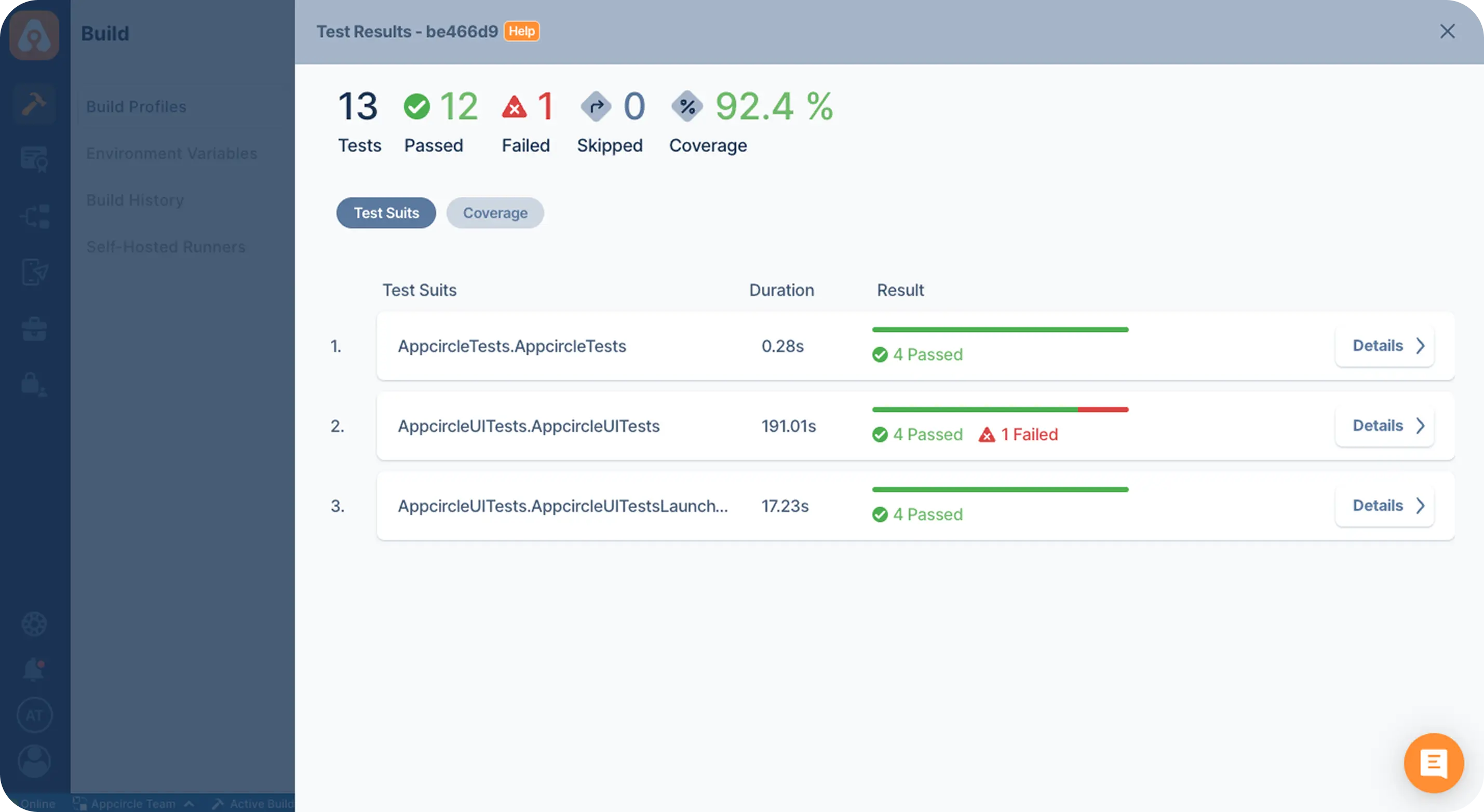
The Appcircle Test Report step displays your test results and code coverage in an aesthetically pleasing user interface.
This component supports the following test and coverage formats:
Example Use Cases:
- Centralized Test Results for Quick Review: Reviewing failed unit or instrumentation tests from JUnit directly in an easy-to-read Appcircle interface.
- Monitoring Code Coverage Metrics: Displaying code coverage metrics using JaCoCo to identify untested areas in the application.
- Facilitating Team Collaboration: Sharing visually appealing test reports with the team to discuss failures or low coverage areas.
For more information about Test Report for Android, please visit the Test Reports for Android documentation.
Firebase Test Lab for Android
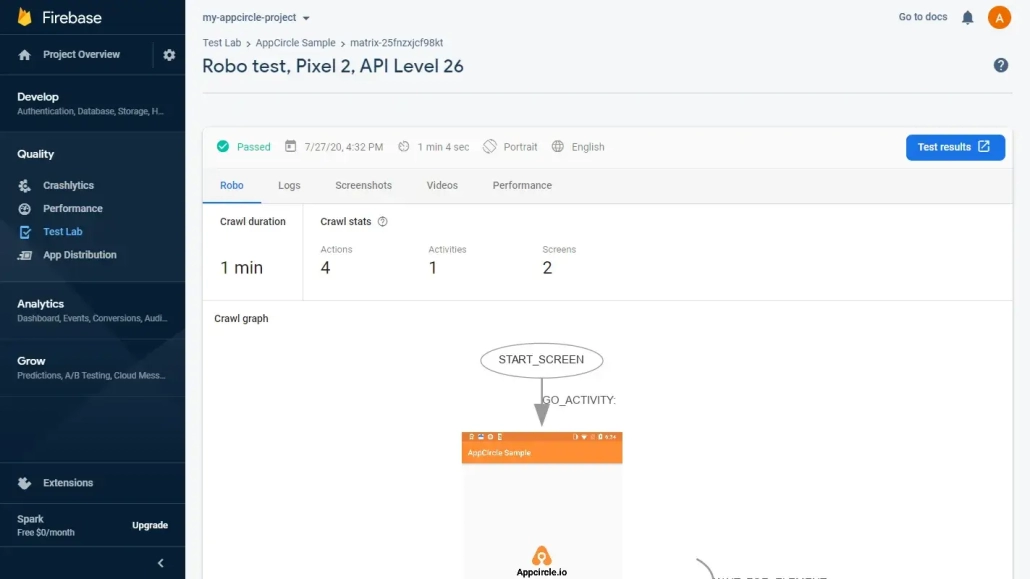
Appcircle is integrated with the Firebase Test Lab for continuous testing. Your app can be built in Appcircle and directly deployed to the Firebase Test Lab to run automated tests.
Example Use Cases:
- Testing Across Devices and Configurations: Testing on different Android versions, from the latest release to older versions still used by your audience.
- Identifying Performance and Stability Issues: Detecting crashes or ANRs during automated test runs.
- Running Instrumentation Tests: Pairing the app with its test application, built by the Android Build for UI Testing step, for instrumentation runs. Robo tests do not need that step.
For more information about Firebase Test Lab for Android, please visit the Firebase Test Lab documentation.
Testinium
The Testinium step allows automated testing of mobile applications directly within the Appcircle environment. It enables developers to execute test scripts, analyze test outcomes, and verify the quality of their mobile apps before deployment.
Example Use Cases:
- Automated Regression Testing: This step ensures core features like booking rides and payment processing remain functional.
- Automated Functional Testing: The tests run after every commit in Appcircle, preventing the introduction of bugs in the main branch.
- Device-Specific Testing: A team uploads their mobile banking app to Testinium and tests it on high-priority devices, such as Samsung Galaxy S23 and Google Pixel 8.
For more information about Testinium, please visit the Testinium documentation.
4. App Management Tools
Once the code has been analyzed, secured, and tested, what is left is managing the application package itself. These tools automate versioning, keep app size under control, and make builds easy to tell apart.
Android Increment Build and Version Number
In application release and testing processes, multiple packages can be released within the same day, each serving a different purpose. Therefore, version tracking is crucial. Managing version numbers and build codes is fundamental to app development. The Android Increment Build and Version Number step in Appcircle automates this process, ensuring that each build is assigned a unique version code and name. This prevents versioning conflicts and simplifies release management in CI/CD pipelines.
Example Use Cases:
- Version Code update: Incrementing the version code after each CI pipeline execution.
- Version Name automation: Automatically update the version name before publishing to Google Play Store.
- Consistent versioning across variants: Ensuring version consistency across multiple build variants (e.g., beta, production).
For more information, please visit the Android Increment Build and Version Number documentation.
File Size Check
The File Size Check component checks the size of your generated app file. It compares it against the size you have given and if the size is exceeded, it either breaks the pipeline or shows it as a warning.
Example Use Cases:
- Enforcing a Consistent Size Budget Across Releases: Setting a maximum size the app is not allowed to pass, so a release cannot quietly grow beyond what the team agreed on.
- Ensuring Compliance with Company Standards: Enforcing a company-wide app size limit (e.g., APK size must not exceed 200MB) and preventing any build that exceeds it.
- Catching Growth Early: Issuing a warning rather than breaking the pipeline when the configured size limit is exceeded, so the team can optimize assets like images, resources, or libraries before it becomes a release blocker.
For more information about File Size Check, please visit the File Size Check step documentation.
Add Badge to App Icon
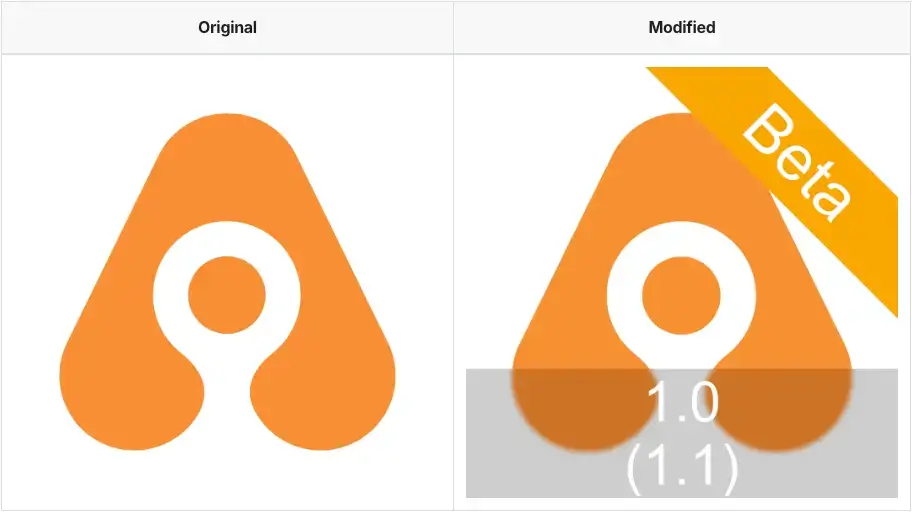
In large teams, testing and release processes can become complex enough that testers lose track of which package they are looking at. The Add Badge to App Icon step visually differentiates builds by overlaying a badge on the app icon, which makes the environment or build status obvious at a glance.
Example Use Cases:
- Adding "Beta" badges to staging environment builds.
- Customizing app icons for specific version code and version number.
- Customizing text and text background color.
For more information about Add Badge to App Icon, please visit the Add Badge to App Icon documentation.
Publish Release Notes
Release notes tend to get written at the last minute, by whoever happens to be doing the release. The Publish Release Notes step moves that into the workflow: it generates a release-notes.txt file during the build, either from the options you set or from a file you point it at, and the content can be enriched with environment variables.
Example Use Cases:
- Generating Notes During the Build: Generating release notes during the build rather than writing them by hand afterwards.
- Feeding Distribution Steps: Passing the same notes on to Testing Distribution, Firebase App Distribution, or a Google Play submission.
- Standardizing Release Documentation: Standardizing the format of release documentation from one release to the next.
Add Export Build Artifacts after this step so the generated file is available with the build.
For more information about Publish Release Notes, please visit the Publish Release Notes step documentation.


5. Issue Tracking Report Tools
After the code has been analyzed, scanned, and tested, the last step is recording those outcomes where the team already tracks its work.
Jira Comment
The Jira Comment step posts the workflow result onto the related issue and can change its status.
Example Use Cases:
- Automatically Updating Jira Issues: If the build fails, the component can post a comment like "Build failed on the Android Sign step, check build logs", keeping the team informed of the failure and reducing manual tracking efforts.
- Changing the Status of Jira Issues: When a success transition is configured, the attached Jira issue moves automatically once the workflow finishes without errors.
- Reducing Manual Updates: This allows developers to focus on coding rather than task management, and Jira is always kept up to date automatically.
For more information about Jira Comment, please visit the Jira Comment step documentation.
Azure Boards
You can use the Appcircle Azure Boards step to add a comment and change the status of your work items according to the status of your workflow.
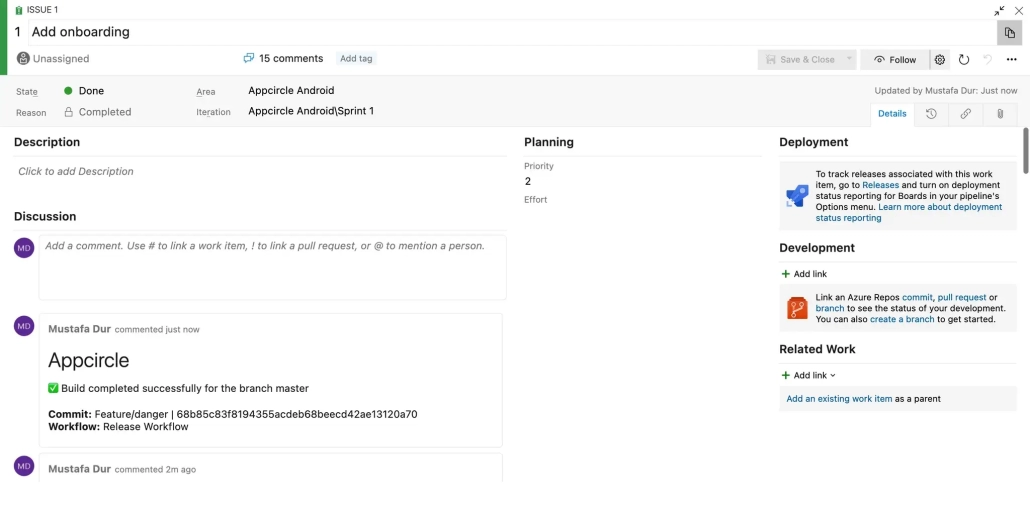
Example Use Cases:
- Automating Status Updates Based on Workflow Results: Moving a work item to the state you configured for a successful build or test step.
- Adding Comments to Provide Context: Automatically add comments with build or test results to the relevant work item for tracking progress.
- Enforcing Workflow and Process Consistency: Automatically transitioning tasks between stages to maintain consistent tracking across the team.
For more information about Azure Boards, please visit the Azure Boards step documentation.
Putting It Together: Three Android Workflows
Not every check belongs on every trigger. A pull request is where a developer validates a single change, a push to the main branch is where a release candidate takes shape, and the slowest checks belong to a nightly run. Splitting the work this way keeps the review loop short without giving up coverage.
Pull request build
The developer is testing one change here, so the workflow stays on the repository and the compiled result. No explicit version increment or release-signing step is added, because the artifact is not intended for release.
- Git clone
- Static security scan: MobSF Source Code Scan, Snyk Scan Security
- Code quality scan: Android Lint, Detekt, SonarQube, Danger
- Unit testing: Android Unit Tests, Test Reports for Android
- Build: Android Build
- Update issue tracking: Jira Comment, Azure Boards
Close it with Export Build Artifacts, so the generated scan and test reports can be accessed from the Download Artifacts page, provided each step writes its report to the export directory.
Push build
Once the change is on the main branch, the build becomes a package that could go to the store, so it is versioned, signed, and tested as one.
The same scans and tests as above, and then the steps that turn the result into a distributable package:
- Versioning: Android Increment Build and Version Number
- Build: Android Build
- Signing: Android Sign
- UI testing: Android Build for UI Testing
- Test automation, happy path: Firebase Test Lab for Android, Testinium
- Binary security scan: MobSF Binary Scan, Fortify on Demand Mobile Assessment
This workflow produces artifacts for two different purposes. Android Build produces the release package, which is what gets signed and scanned, while Android Build for UI Testing produces a separate app and test APK pair for the instrumentation run. Point the test automation and binary scan steps at the artifact each of them needs, so the security scan reads the signed release package rather than the test build.
What comes out of this workflow is a signed and tested package, produced without holding up anyone waiting on a pull request.
Nightly build
The push workflow with the full test suite instead of a happy path, plus the assessments that take real time:
- Continuous security assessment: Data Theorem Mobile Secure
- Runtime protection testing: KOBIL Appshield Scanner
These assessments operate on a built application, with KOBIL specifically requiring a signed APK or AAB. Running them overnight keeps the more extensive security checks outside the pull request review loop.
This separation gives developers early feedback on pull requests, produces a signed and validated package on every main branch push, and keeps the full test suite and the longer security assessments on a nightly schedule.
Conclusion
Bugs are inevitable in software development, but an effective code review process is what keeps them from reaching users. The tools in this article each cover a different part of that: style and structure, security, behavior, the package itself, and the record that ties it all back to your issue tracker.
What makes the difference in practice is that they run in one place. Every step above is configured in the same workflow editor, across the triggers you choose, and with Set Commit Build Status enabled the result is reported back to platforms such as GitHub, GitLab, or Bitbucket as a check on the request itself. The workflow itself can also run on self-hosted Appcircle, though the outbound requirements of individual third-party integrations are worth reviewing separately.
For the iOS side of code review, see our guide to iOS code review practices. For prioritization, notifications, and security checks that apply across any tech stack, see our guide to streamlining Pull Request workflows.
Frequently Asked Questions
1. Which Android code review tools can run automatically in a pull request?
Most of the review can be automated. Android Lint and Detekt handle static analysis of the code and Kotlin specifics, Danger enforces the rules of the pull request itself such as missing tests or commit message format, SonarQube tracks quality and technical debt, MobSF Source Code Scan covers security patterns, and Snyk Scan Security checks dependencies. Android Unit Tests and the reporting steps take care of behavior. In Appcircle these run as workflow steps on a pull request trigger, and the Azure DevOps Bot for Detekt Report can post the results straight into the open pull request.
2. What does automated scanning add to Lint and Detekt?
Lint and Detekt are built around code quality: unused resources, layout performance, Kotlin code smells, deviations from the team's standards. They catch some security issues but that is not their focus. MobSF Source Code Scan approaches the same Java, Kotlin, and Android XML from a security angle, reporting the file, the line, a severity, and CWE or OWASP MASVS references for each finding. Snyk Scan Security covers a third area neither one touches, the known vulnerabilities in the libraries the project depends on. The three answer different questions, so they complement each other rather than replace one another.
3. What is the difference between static and dynamic security testing for Android apps?
Static testing inspects the code or the packaged app without running it. On the repository it points at the file and line that need fixing, and on the built APK or AAB it covers the manifest, the requested permissions, how the package is signed, and the binary protections. Dynamic testing installs and runs the app to observe how it behaves, which is the only way to confirm that protections such as root detection or anti-tampering actually hold at runtime. The trade-off is timing: static checks are fast enough to gate a pull request, while dynamic checks need a signed build and usually run later in the pipeline.