

Android Build
A step-by-step guide to Android build automation. Learn how Android builds work, automate Gradle workflows, manage keystores and signing configs, and produce release-ready APK/AAB artifacts.
What is Android Build?
An Android build is the process of turning your project's code and resources into an app artifact you can run, test, or release. The tools behind the scenes compile your Kotlin or Java code, handle the resources, sort out any dependencies, and package everything into an APK (for installation) or AAB (for publishing).
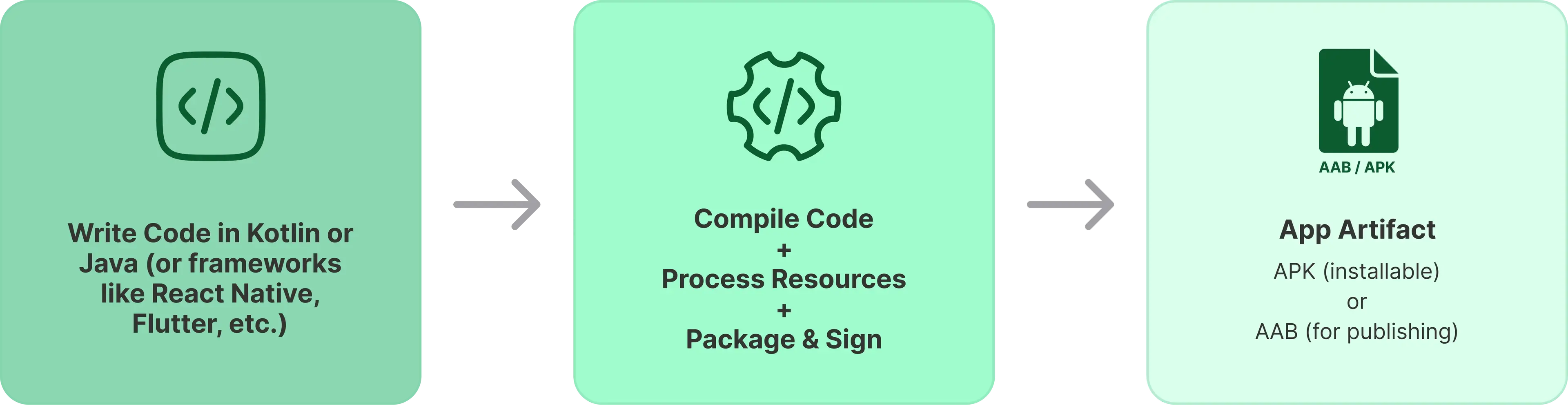
A build involves a set of tasks, typically including:
- Compiling code
- Processing and merging resources
- Applying build rules (variants, signing, optimizations)
- Packaging the final artifact
Key Concepts in the Android Build
Build System: The Android build system coordinates how your app is compiled, packaged, and prepared for distribution.
Gradle: Most Android projects use Gradle, which runs build steps as tasks powered by the Android Gradle Plugin (AGP). Your Gradle files define dependencies, build settings, variants, and signing.
Build Variants: A build variant is a specific app output from the same codebase. It combines build types (like debug and release) with optional product flavors (like dev, staging, prod).
Debug vs. Release Builds:
- Debug builds are for development, with debugging enabled and usually auto-signed for quick install.
- Release builds are for distribution, typically optimized and signed with your release key (or upload key when using Play App Signing).
AAB vs. APK:
- APK is what devices install, often used for direct distribution.
- AAB is what you upload to Google Play, which generates optimized APKs for different devices.
How to Build an Android App?
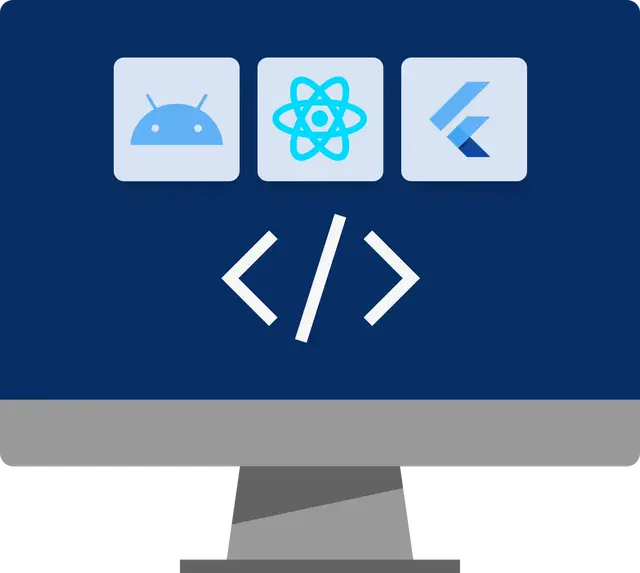
Building an Android app means producing a runnable or distributable artifact from your project, usually a debug APK for development and a signed release AAB or APK for distribution. No matter the framework, the final step relies on the Android toolchain, typically driven by Gradle.
Most teams build Android apps in three ways:
- Build with Android Studio for local development and quick iteration.
- Build from the command line for repeatable local builds and automation.
- Using a CI/CD tool for consistent builds, tests, signing, and distribution.
Building a Native Android App
Native Android projects use Android Studio + Gradle for direct control over build variants, signing, and Play Store packaging.
1. Build with Android Studio
- Open the project in Android Studio and let it sync Gradle.
- Pick a device (emulator or physical).
- Click Run to build and install a debuggable build.
To generate distributable artifacts:
- Debug APK: Select the debug variant, then Build > Build Bundle(s) / APK(s) > Build APK(s).
- Signed Release AAB or APK: Build > Generate Signed Bundle / APK. Choose AAB for Google Play or APK for direct distribution, then complete the keystore steps.
2. Build from the Command Line
Command line builds work locally and in CI tool for consistency.
Common Gradle tasks:
./gradlew assembleDebugcreates a debug APK../gradlew assembleReleasecreates a release APK (signing required)../gradlew bundleReleasecreates a release AAB (signing required).
Artifacts appear under app/build/outputs/:
- Debug APK:
app/build/outputs/apk/debug/app-debug.apk - Release APK:
app/build/outputs/apk/release/app-release.apk - Release AAB:
app/build/outputs/bundle/release/app-release.aab
3. Using a CI/CD Tool
CI/CD tools automate builds for every push, merge, or tag. They run Gradle tasks, execute tests or lint checks, handle secure signing for releases, and store APKs or AABs for distribution. Tools like Appcircle simplify this process with build automation, secure signing, and release management in one place, including app distribution support.
Building a React Native Android App
React Native builds combine JavaScript or TypeScript code with a native Android container. You still produce Android artifacts with Gradle, but React Native also bundles JavaScript and assets.
- Debug build (local development): Run from the project root with
npx react-native run-android. - Release build (APK or AAB):
- Using React Native CLI:
npx react-native build-android --mode=release(generates AAB) - Using Gradle directly from
android/directory:./gradlew assembleRelease(APK)./gradlew bundleRelease(AAB)
- Using React Native CLI:
Release builds require Android app signing and correct versioning, just like native apps. For more detailed steps, see the official React Native documentation.
Building a Flutter Android App
Flutter builds Android apps from Dart code, then uses the Android toolchain to package artifacts.
- Debug build: Use
flutter runwith a connected device or emulator. - Release APK:
flutter build apk --release - Release AAB:
flutter build appbundle --release
Flutter projects include an android/ folder, so Gradle configuration, signing, and flavors apply for deeper customization. For more details, refer to the official Flutter documentation.
How to Set Up Android Build Configurations
Android build configuration defines how your app compiles and packages across different environments. This covers build tools setup, variants for targets, version management, and signing preparation for distribution.
Setting Up the Android Build Environment (SDK & Tools)
A reliable Android build environment includes:
- Android Studio, standalone command line tools, or a CI/CD environment (like Appcircle)
- Compatible JDK for your Android Gradle Plugin (AGP) and Gradle setup
- Required Android SDK platforms, build tools, and platform tools
Tips for consistent builds:
- Use the Gradle wrapper
./gradlewso everyone and your CI tool use the same Gradle version. - Keep AGP, Gradle, and JDK compatible (e.g., AGP 8.x requires JDK 17).
- Install required SDK packages via Android Studio SDK Manager (or
sdkmanager) for yourcompileSdkand build tools.
If you build in a CI/CD tool, apply the same principles: use the Gradle wrapper in your repo, ensure your JDK matches your AGP and Gradle requirements, and keep the build environment deterministic.
Managing Build Variants (Build Types & Flavors)
Build variants let you produce multiple app outputs from one codebase. In Android, a build variant is the combination of a build type and optional product flavors.
- Build types represent the build purpose, such as
debugfor development andreleasefor distribution. - Product flavors are optional and often represent environments or editions such as
dev,staging,prod, orfreevspaid.
After you define build types and flavors, Gradle creates variants named like <flavor><BuildType> (for example, stagingRelease).
Example (Kotlin DSL):

Android App Versioning (Version Code & Version Name)
Android uses two version values:
versionCodeis an integer used to determine upgrade order. It must increase with every release you publish.versionNameis the human-readable release label users see (for example,1.4.0).
A common approach is to increment versionCode on every published build, and update versionName when you want to communicate a new release to users.
Android App Signing
Android apps must be signed to be installed and distributed. During development, debug builds are usually signed automatically. For distribution, you sign your release artifacts with a keystore.
Key signing concepts:
- Keystore and key alias: The private key material used to sign.
- Play App Signing: Google Play can manage the app signing key, while you upload builds signed with an upload key.
- When using Play App Signing, the signature of what you upload can differ from what Google Play distributes to users.
If you're using a CI/CD tool, store keystores and secrets in the platform's secure encrypted storage, then inject them at build time. This approach works the same way in tools like Appcircle, where you configure signing and environment variables once and reuse them across pipelines.
Android Build Automation & CI/CD

Android build automation makes builds consistent, repeatable, and easy to run anytime. CI/CD (Continuous Integration and Continuous Delivery) extends this by creating automated pipelines that run as part of your workflow, producing test-ready or release-ready artifacts.
In Android, CI/CD connects multiple steps: running Gradle tasks, executing tests, applying signing for releases, collecting APKs or AABs, and optionally distributing to testers or publishing to Google Play or Huawei AppGallery.
If you want a step-by-step walkthrough, you can learn more in our Android CI/CD Guide.
Understanding Android Build Automation
Android build automation standardizes how your app is built so the same inputs produce the same outputs. Instead of relying on a developer's machine, you define a predictable process that can run in CI tool using the same Gradle wrapper, the same build tasks, and the same rules for versioning and signing.
Key benefits of Android build automation:
- Faster feedback: Builds and tests run automatically, so issues are caught earlier.
- Reproducible releases: A consistent pipeline reduces "works on my machine" problems.
- Lower release risk: Automated checks prevent broken or unsigned builds from reaching users.
- Secure signing: Keystores and secrets can be handled via encrypted variables and secret storage.
- Simpler distribution: Release candidates easily reach testers or app stores with fewer manual steps.
Android CI/CD with Jenkins, Azure DevOps, and Appcircle

Jenkins Android CI/CD
Jenkins is an open-source automation server where you define an Android pipeline with a Jenkinsfile. A typical Android setup installs or reuses the required JDK and Android SDK, then runs your Gradle wrapper build and test steps. Jenkins is widely adopted and reliable, and its large plugin ecosystem offers a lot of flexibility. However, as it lacks specialization for mobile CI/CD workflows, Jenkins does not provide native support for Android-specific processes. Users must perform manual configurations and ongoing maintenance for tasks such as secure code signing, updates to the latest Android toolchain, and app distribution.

Azure DevOps Android CI/CD
Azure Pipelines supports Android CI/CD with YAML pipelines or the classic visual editor. A common setup checks out the repo, selects a JDK, runs your Gradle wrapper steps (build, test, lint), and publishes the resulting APK or AAB as pipeline artifacts. Azure DevOps works well for teams already using Microsoft tooling and prefers configuration as code, but since it is not mobile-specific, teams usually add extra scripting for a clean build architecture, signing and secret management, distribution processes, and versioning. Centralized code signing management and automatic versioning features are not available out of the box.
Appcircle Android CI/CD
Appcircle is an enterprise-grade mobile CI/CD platform tailored for Android and iOS teams seeking to automate the entire release lifecycle. For Android development, it standardizes builds, securely manages signing identities, facilitates app distribution to testers, and streamlines release management workflows from a unified dashboard. It also supports enterprise needs such as internal app distribution, detailed reporting, and secure access controls like SSO and LDAP-based directory integrations. Appcircle is available as both a cloud and self-hosted solution, and it supports integrating with existing CI systems through plugins, API, and CLI, so you can trigger Appcircle distribution or release flows from pipelines you already run.
What is Gradle?

Gradle serves as the primary build automation tool for most Android projects. It transforms build configurations into executable tasks that compile code, execute tests, and generate outputs such as APKs and AABs.
Key Gradle concepts for Android builds:
- Gradle wrapper (
./gradlew): Ensures consistent builds across local machines and CI environments by using the same Gradle version. - Android Gradle Plugin (AGP): Provides Android-specific functionality, including support for variants, packaging, and resource processing.
- Build scripts: Defined in
build.gradleorbuild.gradle.kts, where developers configure dependencies and theandroid {}block. - Project structure files:
settings.gradle(.kts)defines modules, whilegradle.propertiesandgradle-wrapper.propertieshold common build settings. - Tasks: Gradle exposes tasks you can run directly, such as
assembleDebug,assembleRelease,bundleRelease,test, andlint. - Variant aware builds: When you add build types and flavors, Gradle generates variant-specific tasks (for example,
stagingRelease). - Performance basics: Caching dependencies and keeping builds deterministic helps speed up Android CI builds and reduce flaky build behavior.
Android Testing

Testing forms a core part of the Android build lifecycle. It catches regressions early, keeps releases stable, and builds confidence for publishing. Android teams combine fast unit tests for logic, UI tests for critical flows, and beta testing for real-world validation across devices and networks.
Unit Testing
Unit testing verifies your app's logic in small, isolated pieces. It provides the fastest feedback, so focus it on frequently changing, high-impact code like business rules, validation, parsing, and state management.
Keep unit tests predictable:
- Use dependency injection, fakes, and mocks to avoid real network or disk access
- Ensure clear inputs/outputs and avoid time-based or environment-dependent behavior
- Run unit tests as a standard quality gate on pull requests
UI Testing
UI testing validates user flows from screen rendering to navigation and interaction. Focus on high-impact journeys like authentication, onboarding, and checkout where regressions cause major issues.
To keep UI tests stable:
- Target a few critical flows with controlled test data
- Avoid brittle assertions; treat flakiness as a signal to improve sync or design
- Run on release branches or scheduled if they're slower
Beta Testing
Beta testing validates release candidates in real environments before full rollout. It confirms behavior across devices, OS versions, networks, and user conditions that labs can't replicate.
A strong beta process includes:
- Staged access (store testing tracks or private distribution)
- Production-like settings (signing, shrink rules, feature flags)
- Tight feedback loops (crash reports, performance monitoring)
Android Build Distribution & Publishing
After you produce a build artifact (APK or AAB), the next step is getting it into the right hands. Distribution focuses on sharing builds with testers or internal users, while publishing is the controlled process of releasing through an app store like Google Play or Huawei AppGallery.
Direct APK/AAB Distribution
Direct distribution is best when you need fast feedback and controlled access, without waiting for store review.
Common options:
- Share a debug or release APK for quick installs (for example, internal QA or stakeholder review).
- Use a Testing Distribution portal to manage groups, access, and download links.
AAB note: An AAB is a publishing format and is not meant to be installed directly. If you need an installable package, distribute an APK, or generate APKs from an AAB using Google's tooling (for example, bundletool) or Appcircle's Convert AAB to APK feature.
Practical tips:
- Always distribute signed artifacts, even for internal testing.
- Control access with expiring links, authentication, or approved test groups.
- Treat build artifacts as sensitive files and store them in a secure location.
Enterprise & In-House App Distribution
Enterprises often need to distribute apps privately to employees, partners, or specific customer organizations.
Typical approaches include:
- MDM distribution (for example, Microsoft Intune) to push apps to managed devices with policy controls, enrollment requirements, and compliance rules.
- Private enterprise app stores that provide a branded portal, access controls, and version management for in-house delivery.
In Appcircle, the Enterprise App Store module supports in-house distribution with centralized access management, and can be paired with CI/CD workflows to automate how internal builds are promoted and delivered.
Google Play Testing Tracks
Google Play provides testing tracks so you can validate a release before production.
Common track types:
- Internal testing: A fast track for small, controlled groups and quick iteration.
- Closed testing: Controlled access for larger groups (for example, teams, customers, or communities).
- Open testing: A public test where anyone can opt in.
Good practice is to promote builds through testing tracks in stages, fix issues early, and then move a stable release to production.
Google Play Store Publishing
Publishing is the production release workflow in Google Play Console.
At a high level, you:
- Build a signed release artifact, typically an AAB for Google Play.
- Ensure
versionCodeincreases and your release notes match what changed. - Confirm your app meets current policy and target API requirements.
- Upload the release, configure the target track, and roll out in stages when appropriate.
If you use Appcircle, the Publish module can help automate store publishing flows and handle Android app release management steps for Google Play and Huawei AppGallery from a single dashboard.
Note: For more details, visit the Android App Distribution and Android Releases Guide.
FAQs
Can I build an Android app without Android Studio?
Can I install an AAB directly on a device?
What is the safest way to manage Android signing in CI/CD?
How do I choose versionCode and versionName?
Why did my Android build start failing after upgrading Android Studio or AGP?
Where can I find the generated APK or AAB?
What is a build variant, and why do I need it?
What is the difference between build and version?
Why does my Android build take too long?
What are the best Android build tools?
What are the risks of using APKs?
How do I generate a signed APK or AAB?
How do I automate Android builds in CI/CD?
What is Android Gradle Plugin (AGP)?
Get Started with Appcircle
Save time, reduce costs, and increase developer productivity
Get informed about news, new releases, and mobile DevOps.