

Android App Releases
Complete guide to Android app releases covering Google Play Console submission, review and policy checks, metadata and store listing management, managed publishing, release tracks, and building a repeatable release pipeline with CI/CD automation.
Introduction to Android App Releases
Android development does not end when testing is complete. The primary milestone is publishing your app on Google Play, where it is publicly listed and available for download and updates. A Google Play release is when a production-ready build is published to the Play Store and becomes available to users. It closes the current release cycle until the next version is ready.
In practice, publishing on Google Play follows a repeatable sequence of steps for each version. You generate a production build, package the artifact (most commonly an Android App Bundle (AAB)), upload it to Google Play Console (or deliver it via your CI/CD pipeline), and then complete the required Play Console configurations before submitting for review. Once these checks are completed, you can publish to production and manage rollout using Google Play release controls.
Google Play also defines the requirements for publishing and distribution. Policies, declarations, and review checks may prevent a release even when the app functions correctly on devices. Therefore, publishing should be handled as a defined, repeatable process rather than an ad hoc administrative step. This guide explains the Google Play Store publishing process for Android apps and how to make it consistent and suitable for automation.
What is App Release?
An app release is the controlled process of making a specific, production-ready version available to end users. It spans engineering and compliance activities: you prepare a tested build, apply the required store and distribution settings, complete platform checks, and then publish.
For Android apps on Google Play, a release typically includes a versioned artifact (AAB or APK), an upload to Play Console, store listing and distribution configuration, review and policy validation, and a production publishing step.
Release vs Deployment for Android Apps:
The terms "release" and "deployment" are often used interchangeably, but they refer to different stages:
Release refers to packaging and readiness, selecting what will be published and preparing it for Google Play.
Deployment refers to delivery, distributing that release to a track or to production so users can receive it.
Next, this guide outlines the end-to-end Google Play workflow: preparing your build, uploading, completing Play Console requirements, submitting for review, and publishing.
Google Play Release Flow
The Google Play release flow is commonly referred to as the Google Play publish pipeline or the Google Play Console submission workflow. A structured flow is essential for managing how an Android app is published to the Play Store, including required declarations, store listing assets, review checks, and release controls.
The end-to-end process is managed through Google Play Console, where teams upload release artifacts, configure store and distribution settings, submit for review, and publish to production.
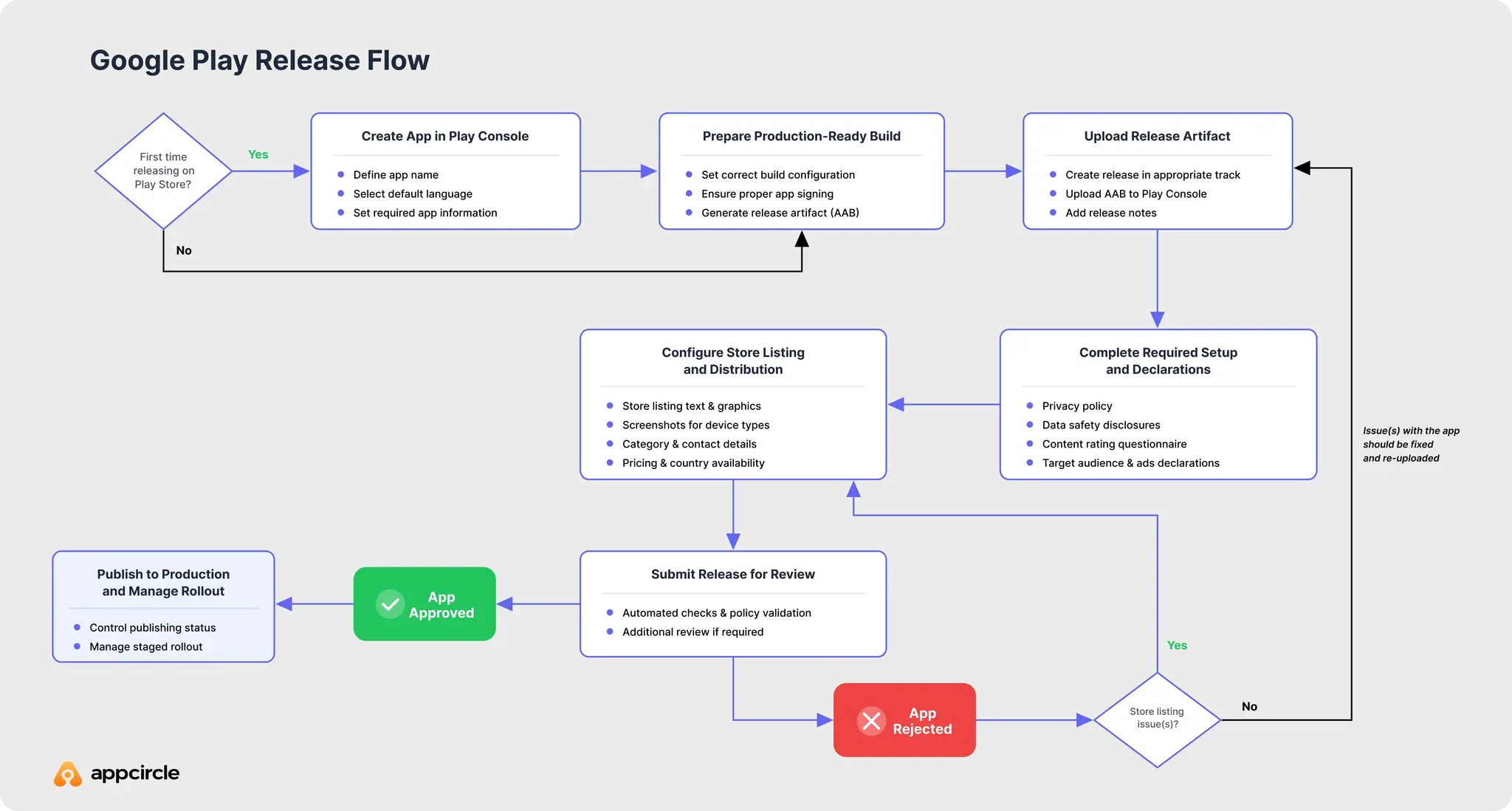
In broad terms, the Google Play release flow includes the following steps:
- Create the app in Google Play Console
The Google Play release flow starts by creating the app entry in Google Play Console (if it does not already exist). This step establishes the container where releases are managed and where required app information is defined, such as the app name and default language.
- Prepare a production-ready release build
Next, a production-ready release build is prepared. This typically involves selecting the correct build configuration, setting the version name and version code, ensuring proper app signing, and producing a release artifact. For most new submissions and updates, the standard packaging format is an Android App Bundle (AAB), while APK is used only in specific scenarios.
- Upload the release artifact and create a release
After the build is ready, the release artifact is uploaded to Play Console and associated with a release in the appropriate track. Uploads can be performed directly in the console or automated through a CI/CD system using the Google Play Developer API.
- Complete required Play Console setup and declarations
Publishing to Google Play also requires completing mandatory Play Console requirements beyond the uploaded build. Depending on the app, this may include reviewer access instructions, a privacy policy, data safety disclosures, ads status, content rating, and target audience declarations. These items are evaluated during submission. Many teams also publish the same build to one or more testing tracks (internal, closed, or open) before moving to the production track.
- Configure the Play Store listing and distribution
Once requirements are complete, the Play Store listing and distribution settings are configured. This includes store listing text and graphics, screenshots, category and contact details, as well as pricing and country or region availability.
- Submit the release for review
When the release is ready, it is submitted for review. Google Play may apply automated checks and policy validation, and some submissions may go through additional review depending on risk signals, app category, or account history.
- Publish to production and manage rollout
Finally, after approval, the release is published to production. Google Play provides release controls to manage how the update reaches users, including publishing status and rollout controls, after which the app version becomes available to eligible users on supported devices.
Tip: With Appcircle's Publish module, you can configure and manage your Google Play rollout strategy directly from your CI/CD pipeline, without manually switching between Play Console screens. Appcircle's App Rollout Information feature lets you define rollout percentage, choose between manual and automatic, and track release status, all as part of a repeatable, automated publish flow.
Preparing Your App for Google Play Submission
Preparing for Google Play submission is the work that makes a release "submission-ready" before anything is uploaded in Play Console. This stage covers the technical release build setup, versioning, artifact preparation (AAB or APK), and the minimum information Play Console expects to see before a release can move forward.
- Confirm your release artifact and packaging format
For most Android releases, the recommended format is an Android App Bundle (AAB). It supports Play's delivery model and is the default expectation for new apps and ongoing updates. In cases where APK is still used, the release artifact should still be treated as a production deliverable: versioned, reproducible, and aligned with the intended release configuration.
- Set version name and version code for the release
Every Google Play submission must be uniquely identifiable. Before generating the release artifact, define the version name (user-facing) and version code (upgrade sequence). A clean versioning approach prevents upgrade conflicts, reduces release friction, and keeps release history easy to track across environments and hotfixes.
- Verify production build configuration
A Google Play submission should be built with a production-oriented configuration. This typically includes using the correct Gradle build variant, confirming environment-specific settings (for example, API endpoints, feature flags, and analytics settings), and ensuring the build output matches what should run in production. The goal is to avoid last-minute configuration changes that can invalidate test results.
For comprehensive Android build details and best practices, refer to the Android Build guide.
- Ensure proper app signing for release builds
Google Play requires a correctly signed release artifact. Before submission, ensure the signing setup used for the release build is consistent and managed securely. If re-signing is required, re-sign the release artifact before submission. For step-by-step signing details and best practices, refer to the dedicated Android App Signing guide.
- Run final release readiness checks
Before uploading, perform final checks that reduce avoidable review delays. Typical readiness checks include validating that the app installs and launches correctly, confirming the target SDK and compatibility requirements, and verifying that critical user flows behave as expected in release mode. This is also the right time to confirm that any required policies or declarations are supported by the app's behavior. To validate the release thoroughly and run the checks required to make it submission-ready, you can also refer to the Android App Testing guide.
How to Submit an Android App to Google Play Console
Submitting an Android app to Google Play Console typically involves three parts: uploading a release artifact (AAB or APK), completing store listing and distribution details, and sending the release for review.
Packaging and Uploading Your Build (AAB/APK)
Before uploading, generate a production-ready release artifact and confirm that versioning and signing are correct. For most apps, the preferred artifact is an Android App Bundle (AAB), while APK is used only in specific cases.
- Upload via Google Play Console
In Play Console, open the relevant release area (testing or production), create or edit a release, and upload your AAB or APK. Play Console runs validation checks and may surface issues that must be resolved before submission.
- CI/CD and release automation platforms
Uploads can also be automated through CI/CD and release automation platforms by using Google Play's publishing APIs. With the Google Play Developer API (Publishing API), a pipeline can upload an AAB or APK and associate it with a release programmatically, reducing manual steps and keeping releases consistent across environments.
Managing Store Listing Metadata, Screenshots, Pricing and Distribution
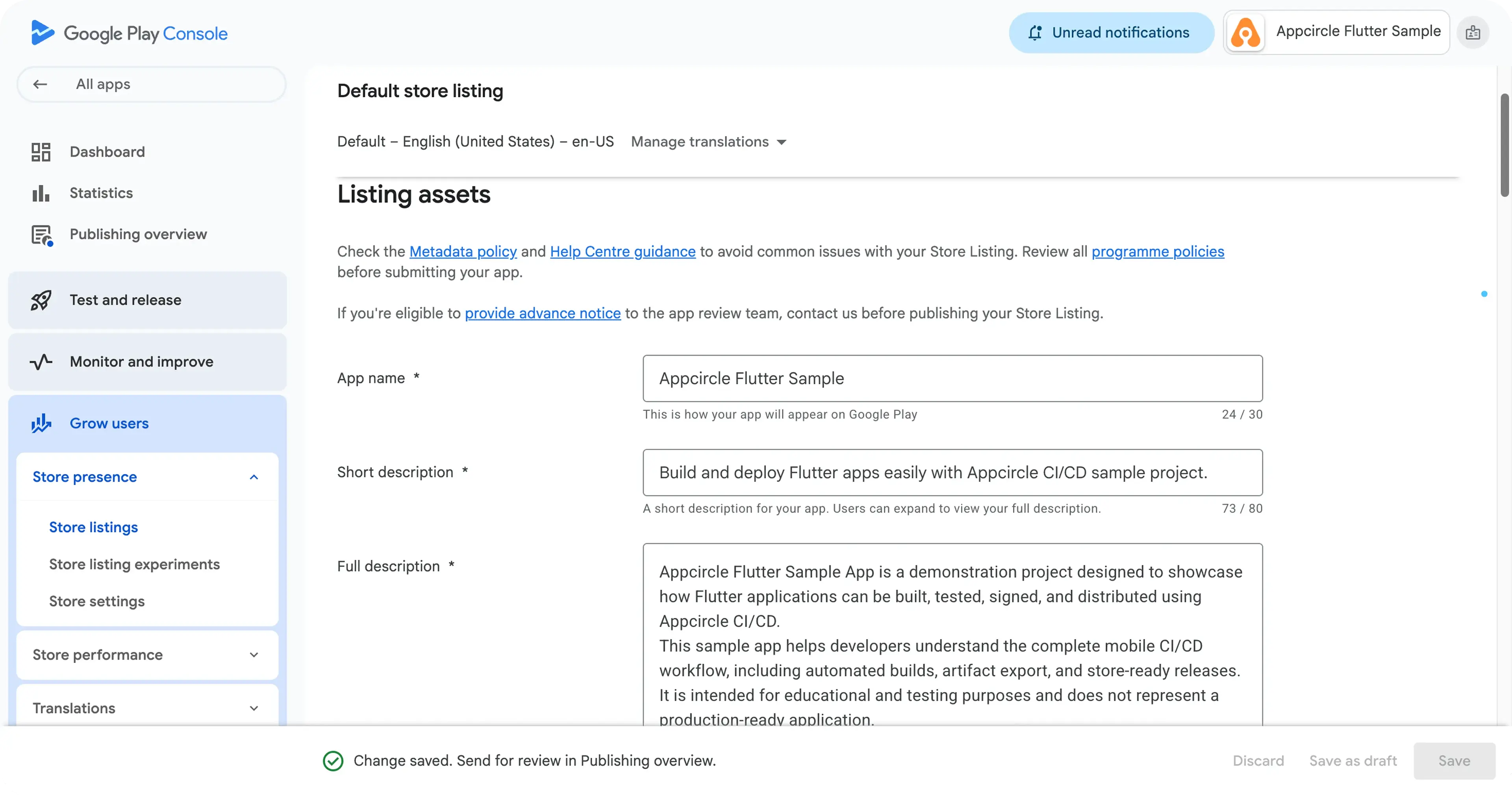
After the build is uploaded, configure how the app will appear in the Play Store and where it will be available. This typically includes:
- Store listing metadata: Metadata fields like app name/title, short description, full description, and feature graphic
- Screenshots and media assets: Phone and tablet screenshots, optional promo assets (when applicable)
- Categorization and contact details: Category selection, email/website, and other required contact information
- Pricing and distribution: Free vs paid, available countries or regions, and device availability settings
Ensure that these details are accurate, consistent with the submitted build, and aligned with Google Play requirements and policies.
Submitting Your Release for Review
When the artifact and required Play Console information are complete, submit the release for review. Google Play applies automated checks and policy validation, and some releases may go through additional review. Address any blocking items flagged by Play Console before completing the submission, then proceed to publishing once the release is approved.
Google Play Review Process
Google Play review is the validation step that happens after a release is submitted in Play Console. During review, Google evaluates your submission for policy compliance and may apply automated checks and, in some cases, additional review steps. Review is not limited to the uploaded build. It also considers Play Console declarations and how the app behaves in production.
Google Play Developer Program Policies and Guidelines
Google Play publishing is governed by the Developer Program Policies and related platform guidelines. Google maintains these policies in its official policy resources, which may update over time. Always check the latest official documentation for the most reliable reference.
The following table summarizes common policy areas that impact release approval and how they are typically evaluated during review:
| Policy Area | What Google Evaluates | Common Review Issues |
|---|---|---|
| Developer Policy Center | High-level policy structure, updates, and policy resources | Relying on outdated assumptions about policy requirements |
| Restricted Content | Prohibited or restricted content categories and related restrictions | Disallowed content, age-restricted functionality, or content that requires additional compliance |
| Intellectual Property | Copyright, trademark, and other IP protections | Using copyrighted assets without rights, misleading branding, or unauthorized use of protected material |
| User Data and Privacy and Data safety | Data collection, sharing, disclosures, and privacy requirements | Inaccurate data safety answers, missing privacy policy, collecting data without clear disclosures |
| Permissions | Use of sensitive or high-risk permissions and required declarations | Requesting permissions without a valid feature justification or missing required declarations |
| Device and Network Abuse | Behavior that interferes with devices, networks, APIs, or other apps | Self-updating outside Google Play, downloading executable code from outside Play, abusive background behavior |
| Deceptive Behavior and Misrepresentation | Misleading functionality, claims, or presentation | Store listing claims that do not match app behavior, misleading screenshots, deceptive flows |
| Target audience and content and Content ratings | Age targeting, child-related declarations, and rating questionnaire accuracy | Incorrect age targeting, inconsistent declarations, incomplete or inaccurate rating responses |
| Payments | Billing and monetization requirements for Play-distributed apps | Selling digital goods without compliant billing, unclear purchase access rules |
| Use of SDKs in apps | SDK requirements and third-party SDK behavior | SDKs collecting data or performing actions that create policy violations |
Before submitting a release, confirm that both the app and Play Console information are complete and consistent. Google's Play Console guidance highlights core submission requirements such as providing accurate app information and metadata, supplying a privacy policy and completing the Data safety section, and providing an active demo account or resources needed for review when access is restricted.
For official checklists and detailed policy references, consult: Developer Policy Center
Google Play Review Time
Google Play review time can vary based on factors such as account history, app category, recent policy changes, and the scope of the submitted changes. Many submissions are processed quickly, but some reviews can take longer, especially for new apps or higher-risk releases.
For release planning, avoid scheduling time-sensitive launches without buffer. It is also important to note that submitting changes again may reset the review cycle.
Tracking Review and Release Status
Play Console provides status indicators to help track where a submission stands. Review and release status can typically be monitored from the publishing and release areas in Play Console, where you can see whether a submission is in review, has issues that require action, or is ready to publish.
For teams using release controls such as managed publishing, status tracking is also important after approval. Even when a submission is approved, the release may remain pending until publishing is triggered based on the configured publishing controls.
Managing Google Play Review Rejections
A Google Play rejection means the current submission can't be approved until specific issues are resolved. The rejection message or enforcement notice usually identifies the exact policy area or requirement that blocked the release. Use that info for a targeted fix, update the relevant Play Console sections, and resubmit a compliant version.
Common Google Play Rejection Reasons
Google Play rejections often fall into these recurring categories:
- Policy and compliance issues: The app may violate a policy requirement related to restricted content, deceptive behavior, user data and privacy, permissions usage, or intellectual property. Rejections can also happen when third-party SDK behavior creates a policy conflict.
- Privacy and disclosure mismatches: Missing privacy policy, incomplete disclosures, or inconsistency between app behavior and Play Console declarations (for example, Data safety) are common reasons for review failure.
- Inaccurate or misleading store listing:Metadata, screenshots, or descriptions that do not reflect the app's actual functionality can trigger a rejection. This can include exaggerated claims, mismatched screenshots, or missing disclosures.
- Low-quality or incomplete listing content:Store listings that look unfinished or unhelpful can create review friction. Common signals include placeholder text, repetitive content, unclear feature descriptions, or missing required information.
- Suspicious or unsafe behavior: Apps may be rejected if they contain malware-like behavior, unsafe links, or suspicious flows that put users at risk. This can also occur when embedded SDKs or ad networks introduce unsafe redirects.
- Technical quality issues: Crashes, freezes, broken flows, or poor performance can cause a rejection, especially if key user journeys do not work as described. Issues that cause frequent ANRs or instability during validation are particularly risky.
- Access and reviewability problems: If reviewers cannot access critical areas of the app (for example, gated content behind login, region locks, or non-public flows), the submission may be rejected unless clear access instructions or test credentials are provided.
- Target audience and content rating issues:Incorrect target audience settings, incomplete questionnaires, or inconsistent content declarations can block approval.
- Payments and billing requirements:Monetization flows for digital goods or subscriptions may be rejected if they do not follow Google Play billing requirements or required disclosures.
- Compatibility or device support gaps: If the app behaves poorly across supported devices or Android versions, or if device availability settings do not match the app's real requirements, the submission may be flagged.
- Duplicate or copycat submissions: Apps that closely replicate existing apps, use protected branding, or provide minimal distinct value may be rejected under policy or quality review criteria.
How to Resolve Violations
Start by reading the rejection notice carefully and identifying whether the issue is related to the build, store listing, or Play Console declarations. In Play Console, review the app's policy and publishing status to locate the exact blocking item.
Next, apply a focused fix based on the rejection type:
- If the issue is app behavior: Change the implementation, update SDK configuration, remove restricted flows, or adjust permission usage so the app matches policy requirements.
- If the issue is privacy or declarations: Update the privacy policy link, correct Data safety answers to match real data collection and sharing, and complete any missing declarations.
- If the issue is metadata or store listing: Revise descriptions and screenshots so they accurately represent the app, remove placeholder content, and add required disclosures.
- If the issue is technical quality: Reproduce the reported problem, fix crashes or ANRs, validate core flows in release mode, and review device compatibility to ensure the app works as expected.
- If the issue is review access: Provide clear reviewer instructions, include a working demo account or test credentials, and ensure backend services are available during review.
- If the issue is payments: Confirm the correct billing implementation and update any purchase-related disclosures.
After changes are made, submit an updated, compliant release. Avoid resubmitting the same version without addressing the root cause, as repeated violations can lead to stronger enforcement actions.
If the submission was rejected in error and the app is policy compliant, use the appeal option provided in the enforcement notice and include concise evidence that addresses the specific policy area cited.
Preventing repeat rejections:
A consistent prevention approach reduces review delays and lowers the chance of repeated rejections:
- Validate the release build in production-like conditions and re-check critical user journeys.
- Ensure Play Console declarations (Data safety, ads, target audience, content rating) match real app behavior.
- Remove placeholder content and keep store listing claims aligned with the app.
- Provide reviewer access instructions and test credentials when access is restricted.
- Review third-party SDK behavior and remove unsafe redirects or suspicious flows.
Releasing an Android App on Google Play

Releasing on Google Play is the stage where an approved build becomes available to users through the Play Store. After review is complete, publishing is controlled from Play Console and can be performed immediately or held based on the publishing settings for the app.
How to Publish an Android App
Publishing typically starts from the relevant release area in Play Console. After a release is approved, publishing is completed by starting the rollout to production (or to the selected track). For a first production release, Play Console publishes the app to users in the selected countries when the production rollout is started. For updates, publishing can be combined with rollout controls to manage exposure and reduce risk.
Managed Publishing vs Automatic Publishing
Google Play supports two practical publishing behaviors after review:
- Automatic publishing (managed publishing disabled): When managed publishing is not enabled, approved changes can go live automatically once review is complete, based on the release and rollout that was submitted.
- Managed publishing (manual publish trigger): When managed publishing is enabled, the submission can be reviewed as usual, but it does not go live immediately after approval. Instead, it remains pending until publishing is triggered in Play Console. This is commonly used to coordinate launches with marketing activity, customer communications, or planned release windows.
Staged Rollout and Release Tracks (Internal, Closed, Open, Production)
Google Play provides multiple release tracks to control who receives a build and when.
- Testing tracks (Internal, Closed, Open): These tracks are designed for pre-production distribution to limited audiences. Internal testing is typically used for quick validation. Closed and open testing support broader testing groups with more controlled access. For track selection and testing distribution strategies, refer to the Android Distribution Guide.
- Production track: The production track is used to publish the release to end users through the Play Store.
For app updates, Google Play supports staged rollouts, where an update is released to a percentage of users and expanded over time. Staged rollouts can be used for updates (not for a first-time production publish) and can also apply to test tracks. Rollout controls help reduce release risk by limiting impact if issues are discovered, and the rollout percentage can be increased as confidence grows.
Android Release Management
Android releases often require coordination across engineering, QA, product, and operations. When publishing is handled manually, teams can lose time to repetitive tasks such as preparing artifacts, collecting approvals, updating store information, and tracking review or publishing status.
Note: Manual publishing also creates risks beyond lost time. See what goes wrong when releases are published by hand.
Android release management formalizes these steps into a controlled workflow. It improves reliability by standardizing what must be prepared before submission, how releases move through approvals, and how publishing actions are executed and tracked across versions.
What is Android Release Management?
Android release management is the practice of planning, coordinating, and tracking the release of Android apps to distribution channels, especially Google Play. It ensures that every version follows a consistent, auditable process from a production-ready build to a published store release.
Effective Android release management typically includes:
- Release planning and ownership: Clear responsibility for what releases, when it releases, and who approves it
- Repeatable build and packaging: Consistent artifacts (AAB or APK), versioning, and release build configuration
- Customizable release pipelines: The ability to tailor the release workflow with optional steps, validations, and organization-specific requirements
- Approval gates: Structured checkpoints for QA, product, or compliance sign-off before publishing
- Store submission readiness: Required Play Console declarations completed and aligned with app behavior
- Publishing controls and rollout management:Controlled release timing and rollout decisions for updates
- Visibility and auditability: Traceable release history, status tracking, and change accountability
Integrating CI/CD with Google Play Console
Integrating CI/CD with Google Play Console reduces manual submission work and helps teams publish consistently. Most release automation approaches rely on the Google Play Developer API (Publishing API), which enables programmatic uploads and publishing operations using a Google service account. For example, pipelines can upload AABs, attach them to a release, and then manage release actions through automated steps.
Common CI/CD to Google Play Console automation capabilities include:
- Uploading AAB/APK artifacts and associating them with a release
- Targeting a specific track for submission (testing or production)
- Tailoring customizable publishing steps, validations, and approvals
- Managing store submission prerequisites as part of a controlled workflow
- Running post-upload checks and surfacing validation errors early
- Monitoring review and publishing status to keep teams aligned
Platforms like Appcircle provide a structured way to connect Google Play Console to your pipeline and execute publishing actions as part of a release flow. For a walkthrough of the Google Play publishing workflow in Appcircle, see the step-by-step documentation: Publish Walkthrough for Google Play Console
Note: To compare mobile app release automation tools, refer to the Mobile App Release Automation Tools guide.
Building a Reliable Google Play Release Pipeline for Android Apps
A Google Play release pipeline is the structured sequence of steps that takes an Android app from a production-ready build to a published Play Store release. A well-designed pipeline reduces manual work, enforces consistency, and makes each release traceable. This becomes especially important when multiple teams, multiple apps, or multiple environments are involved.
A practical Android release pipeline typically includes:
- Standardized stages: Build, test validation, release artifact preparation, and publishing steps executed in a consistent order
- Controlled approvals: Pausing the flow for QA, manager or stakeholder sign-off before submission or publishing
- Secure credential handling: Managing store credentials and publishing access with role-based access controls
- Re-signing support when needed: Re-signing the release artifact before submission when signing with a new keystore is required
- Automated store submission: Uploading to Google Play Console through an integration instead of manual console actions
- Status checks and coordination: Tracking review, publishing readiness, and rollout progress in one place
- Release controls for updates: Staged rollout planning and publish timing aligned with the planned release schedule
- Audit-ready traceability: Clear history of which artifact was published, by whom, and through which workflow
- Rollback controls: The ability to pause a rollout, halt publishing, or revert to a previous stable release if issues are detected
Appcircle supports an end-to-end, automated Google Play release workflow by combining customizable pipelines, approval gates, secure credential handling with role-based access controls, and publishing automation through Google Play and Huawei AppGallery integrations. This enables teams to standardize how Android versions are built, validated, submitted, and published, while keeping each release traceable and consistent from the first production launch to ongoing updates.
FAQs
Is an Android App Bundle (AAB) required for Google Play?
What is versionCode and why must it increase on every upload?
What is Play App Signing, and how does it affect releases?
How long does Google Play review take?
What is managed publishing in Google Play Console?
What are Google Play release tracks (Internal, Closed, Open, Production)?
What is a staged rollout, and when should it be used?
Can a staged rollout be paused or reduced?
What are the most common reasons for Google Play rejections?
Is the Data safety form required for Google Play?
Can releases be automated through CI/CD?
Which app stores can Android apps be published to besides Google Play?
Can the same Android app be published to multiple stores?
What should be considered when updating backend APIs for an app already live on Google Play?
Do you have to publish to testing tracks before releasing to production on Google Play?
Do I need a release automation tool for Android releases?
What should be considered when submitting an APK or AAB to Huawei AppGallery?
Get Started with Appcircle
Save time, reduce costs, and increase developer productivity
Get informed about news, new releases, and mobile DevOps.